This guide will walk you through logging into the CNM platform and accessing your course.
1. Access the Correct Website
Ensure you are using the correct website for your course:
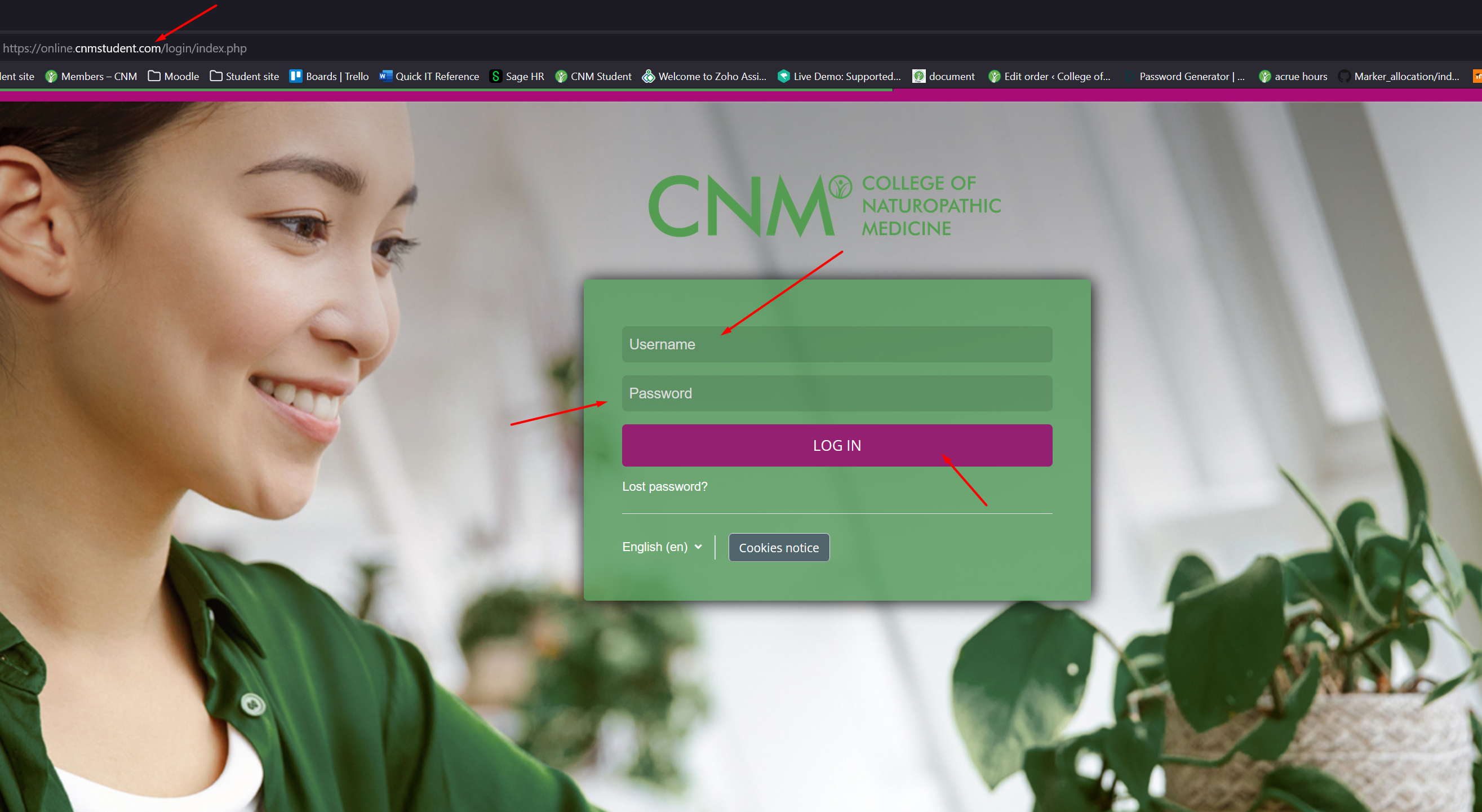
- Online students: https://online.cnmstudent.com
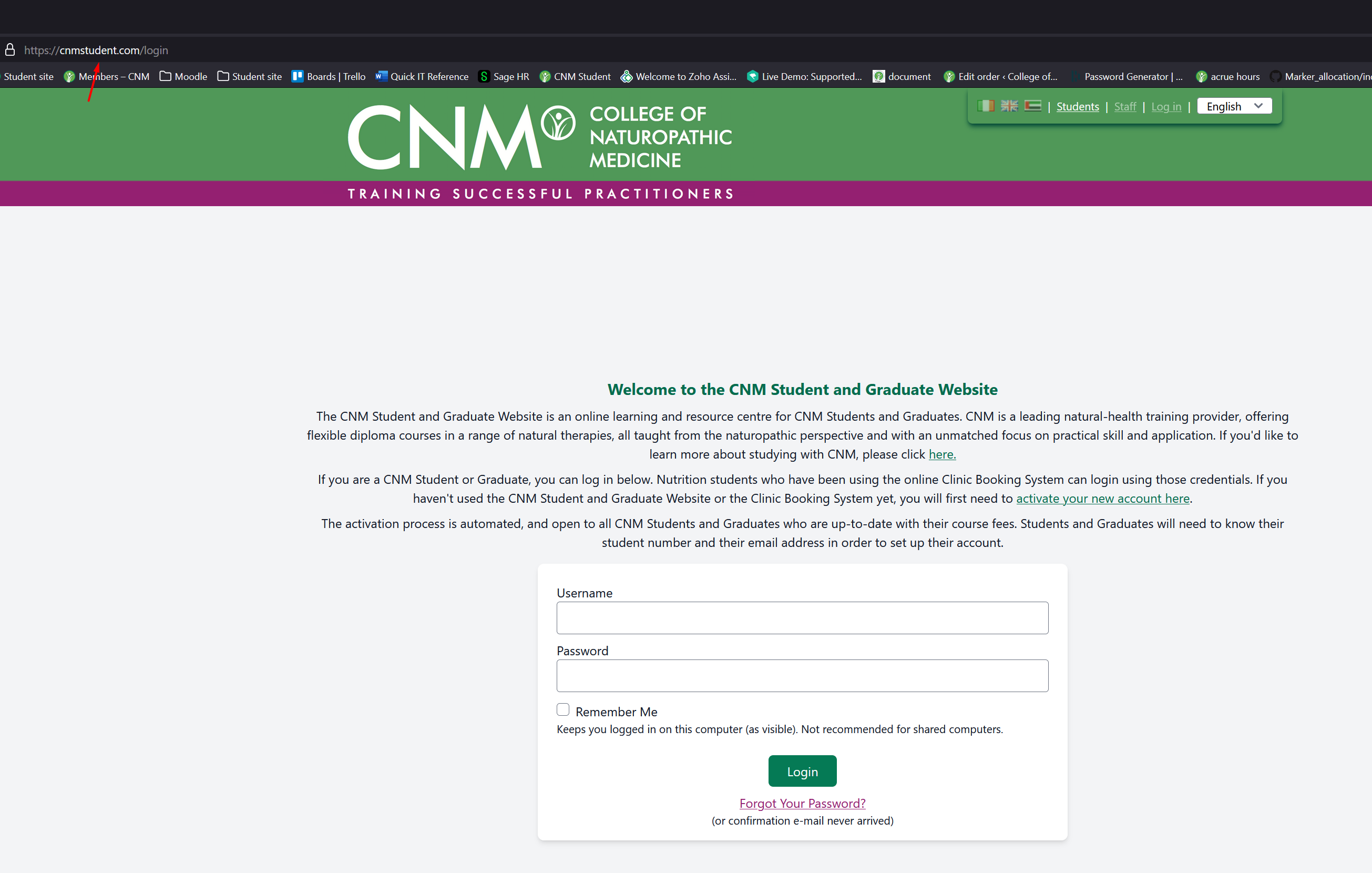
- In-class students: https://cnmstudent.com
2. Log In to Your Account
- Use your student number as your username.
- Enter your password.
- If you encounter issues, make sure your CAPS lock is off and double-check your login details.
3. Navigate to Your Course
Once logged in:
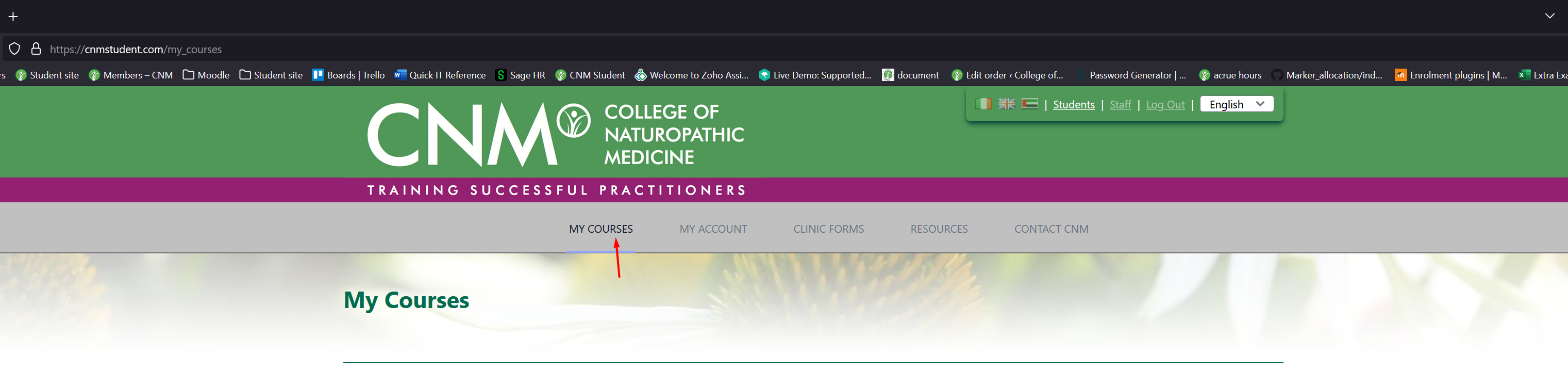
- Locate the Dashboard or My Courses section on the homepage.
- In-class students: https://cnmstudent.com
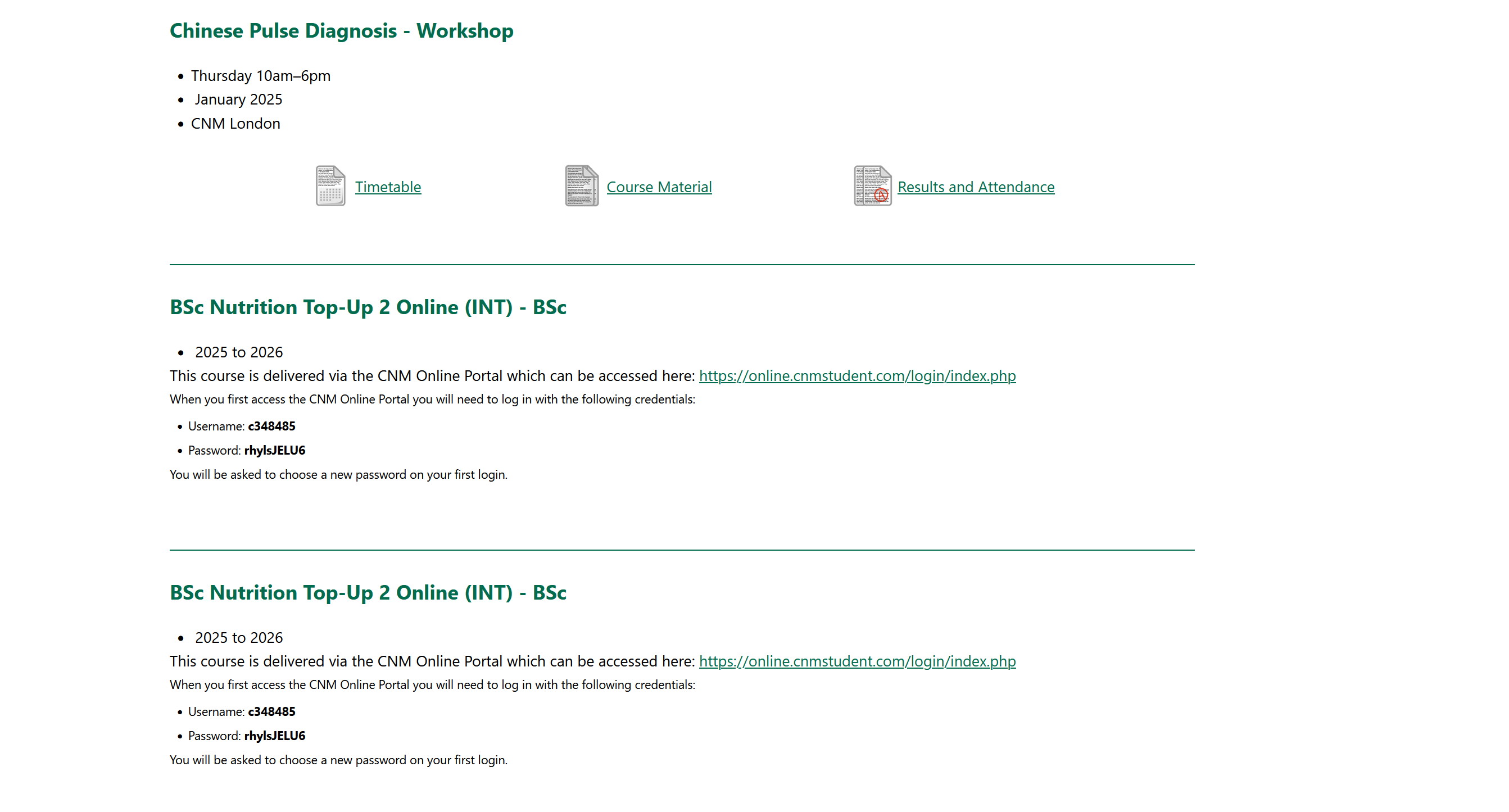
- Online students: https://online.cnmstudent.com
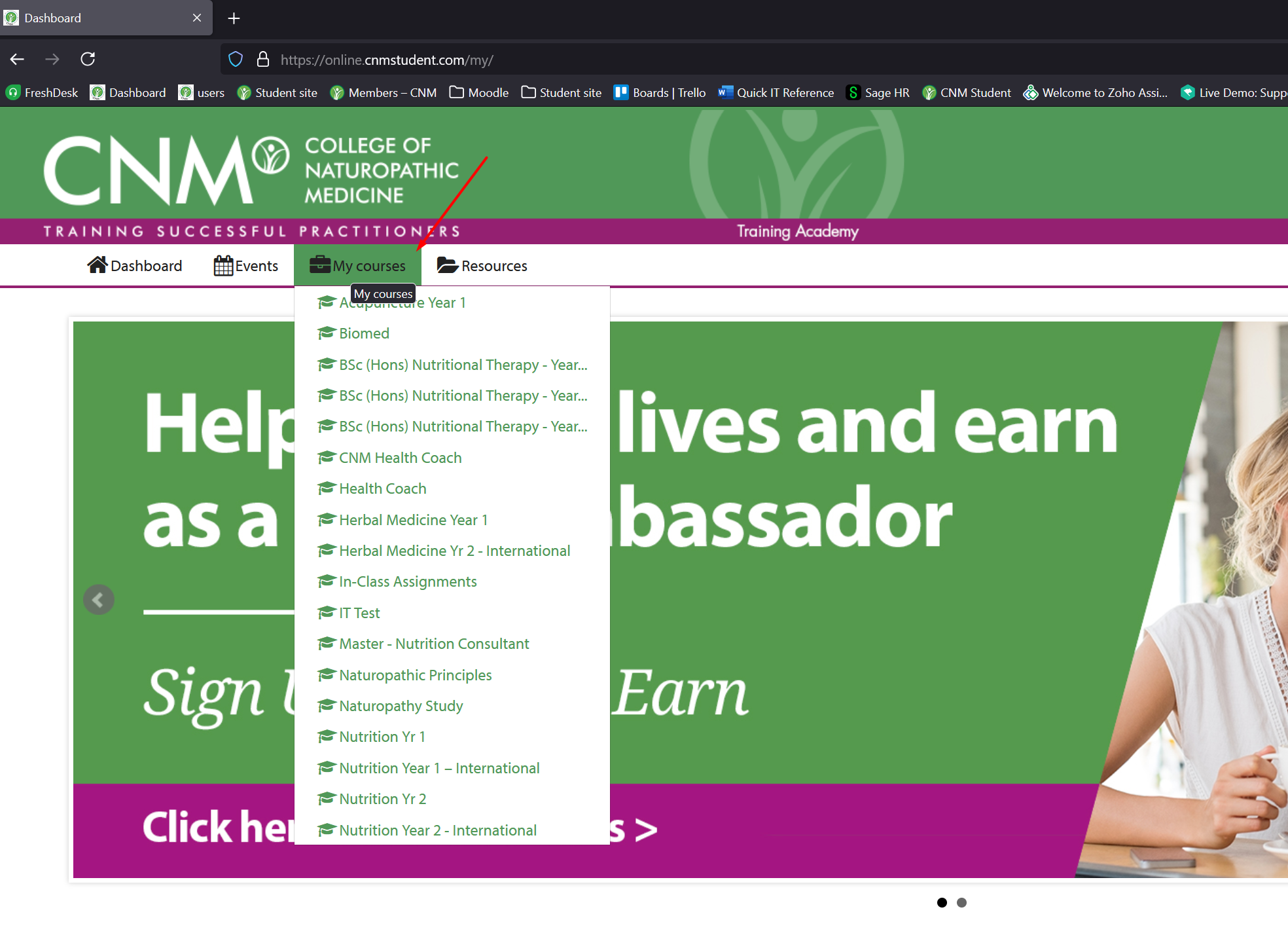
- Click on the course you wish to access.
- Follow the on-screen instructions to start your course material.
4. Troubleshooting Tips
4.1. Forgot Your Password?
If you’ve forgotten your password, you can reset it:
- Online students: Go to https://online.cnmstudent.com and click "Forgotten Password".
- In-class students: Use https://cnmstudent.com and select "Forgotten Password".
Shortly after, you’ll receive an email with a link to reset your password.
4.2. Check Browser Compatibility
- For the best experience, we recommend using Google Chrome.
- If you experience issues, try a different browser or clear your web browser’s cache.
4.3. Additional Assistance
If you continue to face issues logging in or accessing your course, contact CNM support for further help.
Was this article helpful?
That’s Great!
Thank you for your feedback
Sorry! We couldn't be helpful
Thank you for your feedback
Feedback sent
We appreciate your effort and will try to fix the article