Step 1: Go to the Online Exam Website
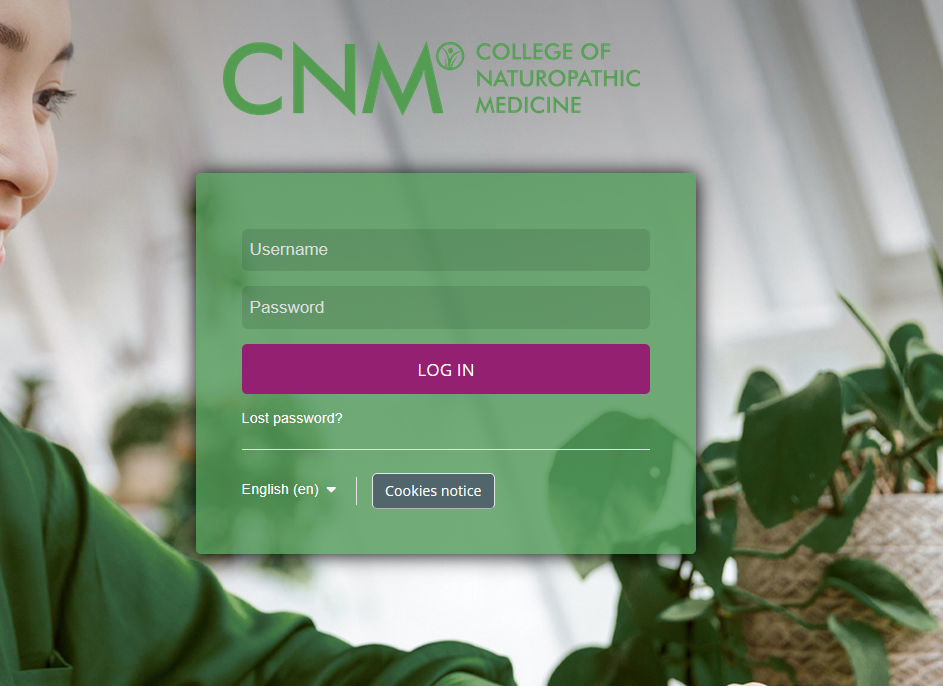
Open your web browser and go to:
https://online.cnmstudent.com/
Step 2: Log In
Enter your username (your Student Number).
Enter your password.
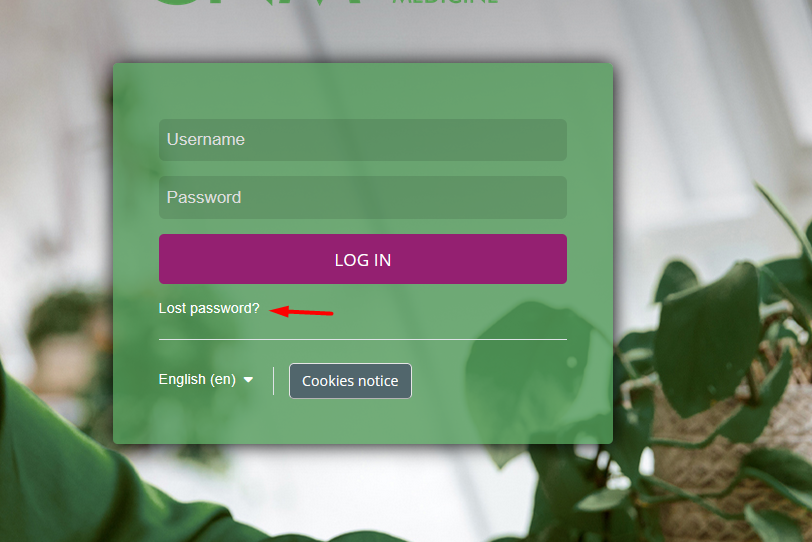
If you have forgotten your password:
Click on “Lost password”.
Fill in the form with your details.
A reset link will be sent to your registered email.
Step 3: Access Your Course
Once logged in, move your mouse over the “My Courses” menu.
Select the correct course from the list.

Step 4: Exam Setup
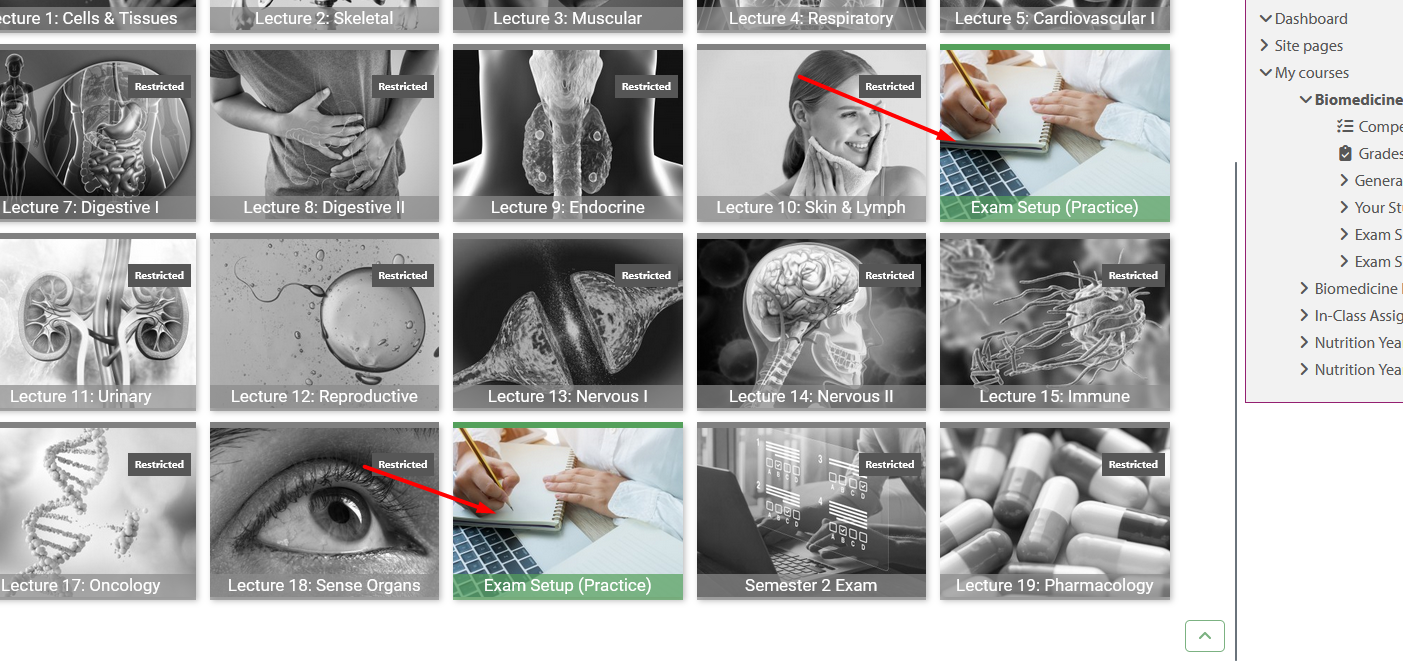
As an in-class student, most course tiles will appear restricted.
The only tile that will be open is “Exam Setup”.
Click Exam Setup and complete the practice setup.
Step 5: Accessing the Exam
After you successfully complete the Exam Setup, the exam tile will automatically open.
Depending on your current semester, the following exam options will appear:
Semester 1 Exam
Semester 2 Exam
Semester 3 Exam
Semester 4 Exam
Was this article helpful?
That’s Great!
Thank you for your feedback
Sorry! We couldn't be helpful
Thank you for your feedback
Feedback sent
We appreciate your effort and will try to fix the article