
Dear Student,
This email contains important information about your upcoming online examination and the steps you must complete before the examination date.
Your Examination Details
- Course name: [COURSE NAME]
- Examination name: [EXAMINATION NAME]
- Examination date: [DATE]
- Availability time: [START TIME] – [CLOSING TIME]
- Examination duration: [DURATION]
Important: Please read the Examination Policy carefully before beginning your examination.
Examination Preparation Instructions
- Check your computer: Ensure your Windows or macOS operating system is up to date before the examination.
- Use Google Chrome: Install or update Google Chrome before completing the setup. Download Google Chrome .
- Check your equipment: Confirm that your camera, microphone and speakers are working correctly.
- macOS permissions: Mac users must allow screen recording, camera and microphone access. Please follow this macOS permissions guide .
- ✅ Complete the Exam Set Up: Open your course and complete the Exam Set Up activity before the examination date.
- Prepare for the room scan: During the proctoring setup, you will be asked to complete a clear 360-degree scan of your examination environment. View the room scan instructions .
- Read the Examination Policy: Review the CNM Examination Policy before the examination.
- Do not leave the setup until the examination day: Complete the practice setup as early as possible so that any technical problems can be resolved in advance.
- Need help? Visit the CNM Help Centre .
How to Access and Prepare for Your Examination
Open the relevant course and review the examination tile. If the tile is restricted, hover over or select the restriction information to see which requirements remain incomplete.
Depending on your course, you may need to complete the Exam Set Up, required course activities, assessments or other specified requirements before the examination becomes available.
Still restricted after completing the requirements? Contact Web Support on 01342 306266.
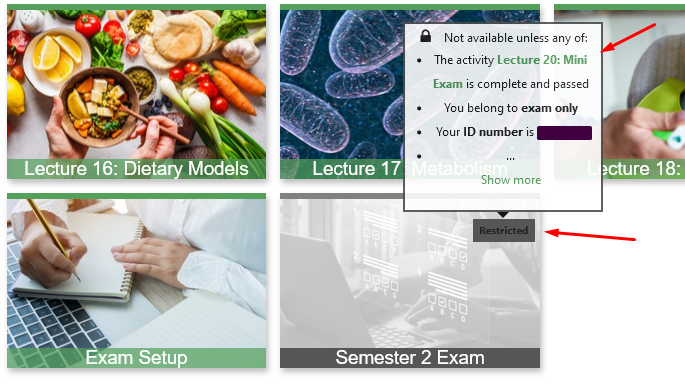
Once you have completed the Exam Set Up activity, make sure the completion box or tick is displayed next to it.

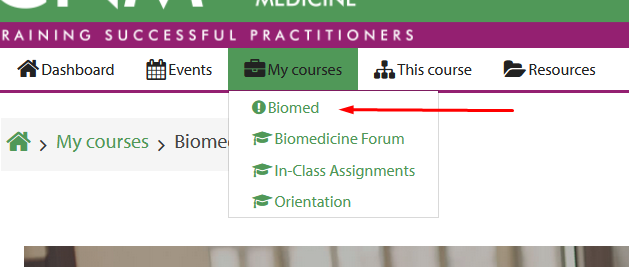
On the examination day, log in to online.cnmstudent.com and select the relevant course from the My Courses menu.
Contact Information
Integrity Advocate
Telephone: +44 20 8103 9092
Email: support@integrityadvocate.com
Web Support
Email: websites@naturopathy-uk.com
Telephone: 01342 306266
Support hours: Monday–Friday, 09:00–17:30, and Saturday, 09:00–17:00.
When contacting support, please include your full name, student number, course, intake and examination name.
Kind regards,
Web Support
College of Naturopathic Medicine
Was this article helpful?
That’s Great!
Thank you for your feedback
Sorry! We couldn't be helpful
Thank you for your feedback
Feedback sent
We appreciate your effort and will try to fix the article