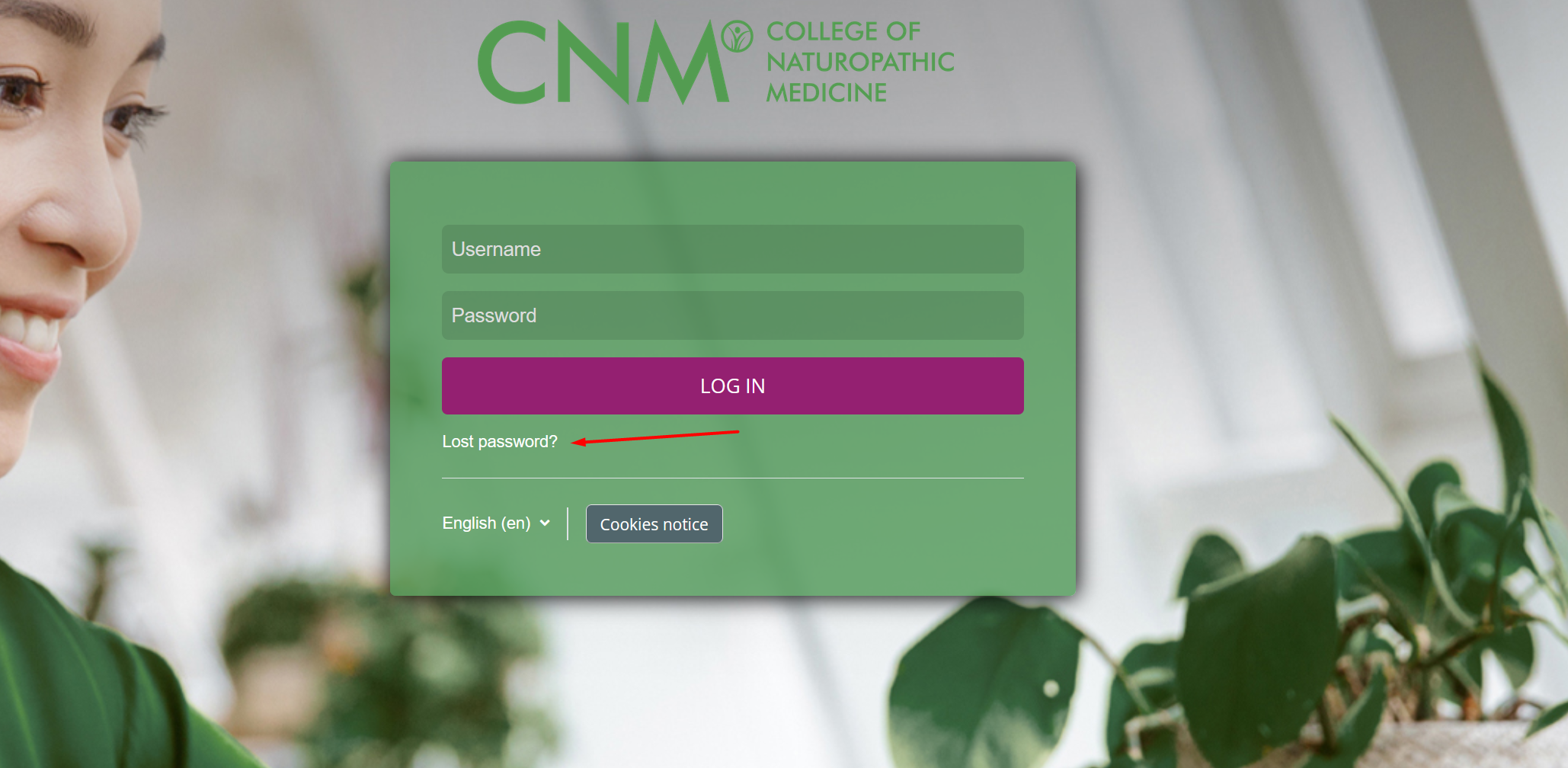
To reset your password, type your student number or the email address you used when you enrolled. Shortly after, you will receive an email from us with a link to reset your password.
For online students, to reset your password, please access: https://www.online.cnmstudent.com
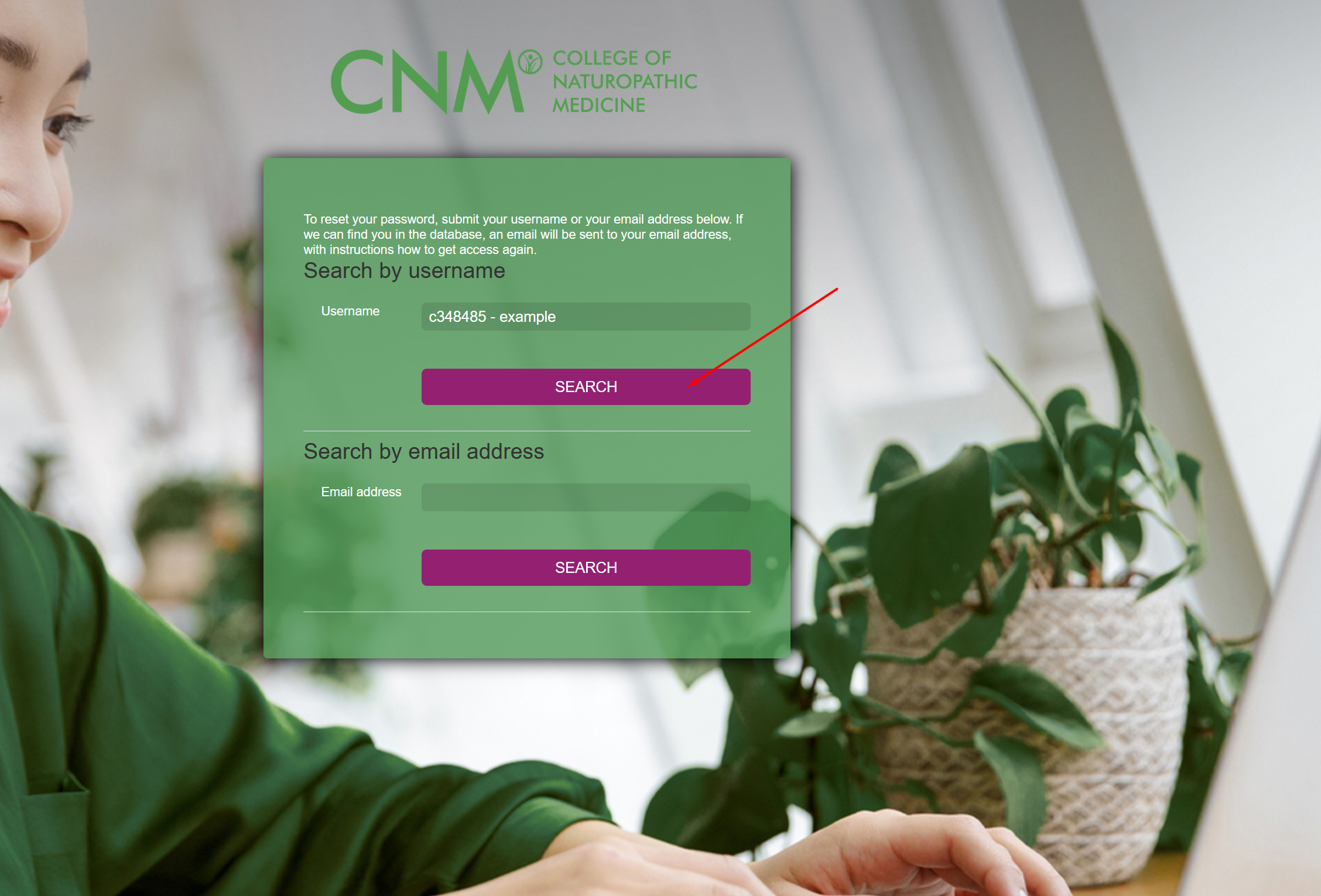
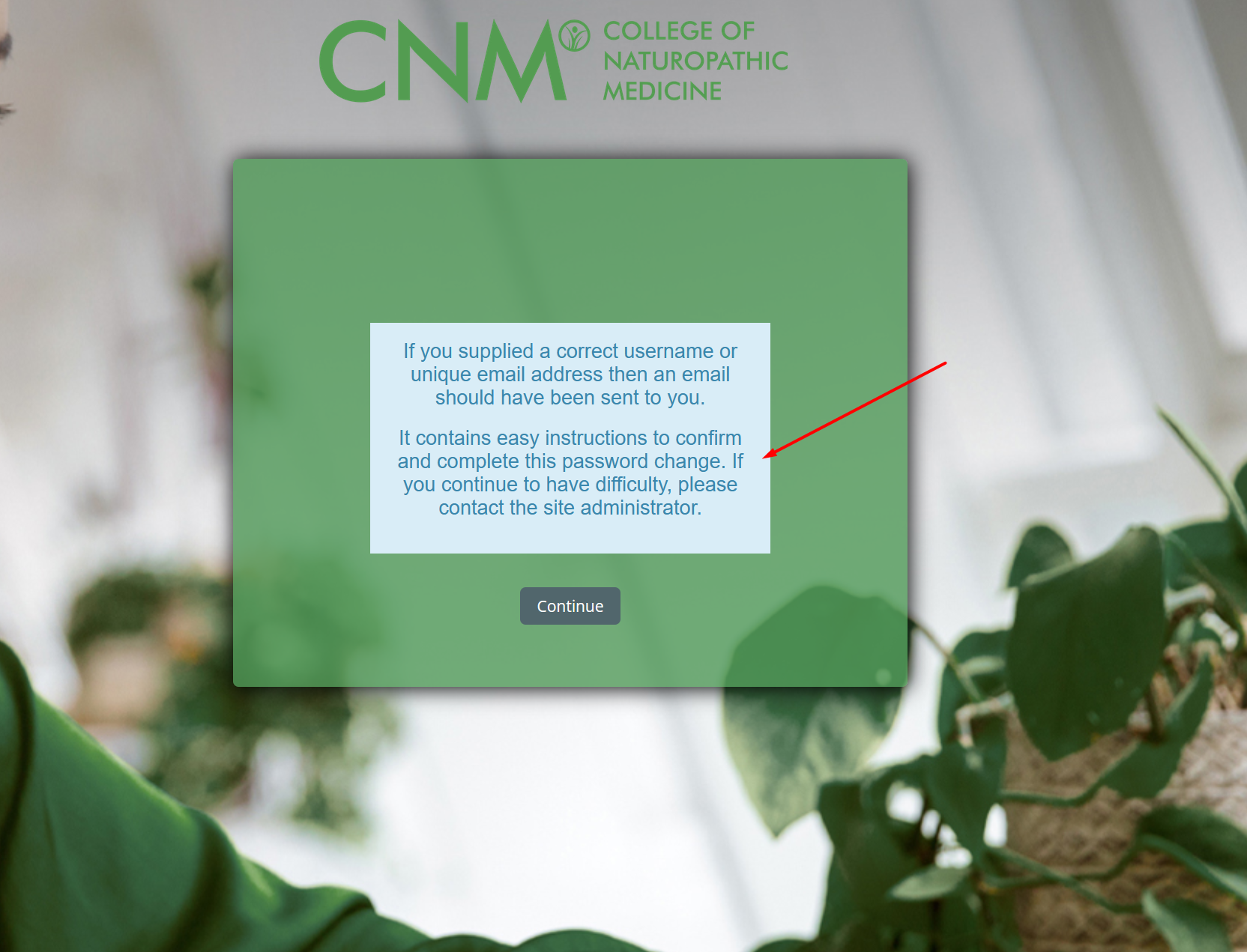
For in-class students, please use: https://www.cnmstudent.com
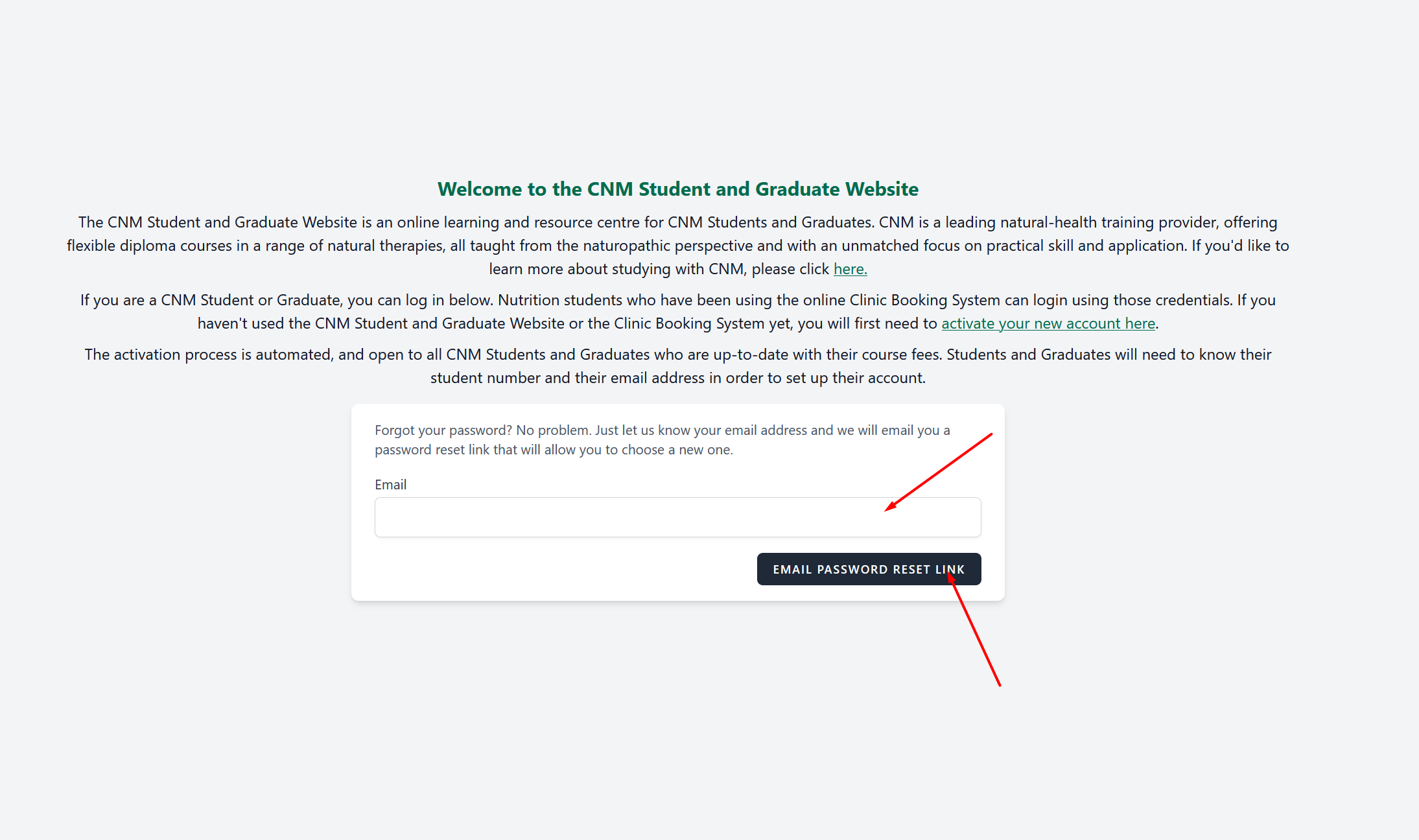
Here are some detailed steps to help you reset your password:
1. **Use the Password Reset Link**: If you are unable to log in after multiple attempts with your password, please use the password reset link provided on the login page.
2. **Ensure You’re on the Correct Website**:
- CNM has two separate websites:
- https://cnmstudent.com
- https://online.cnmstudent.com (Moodle)
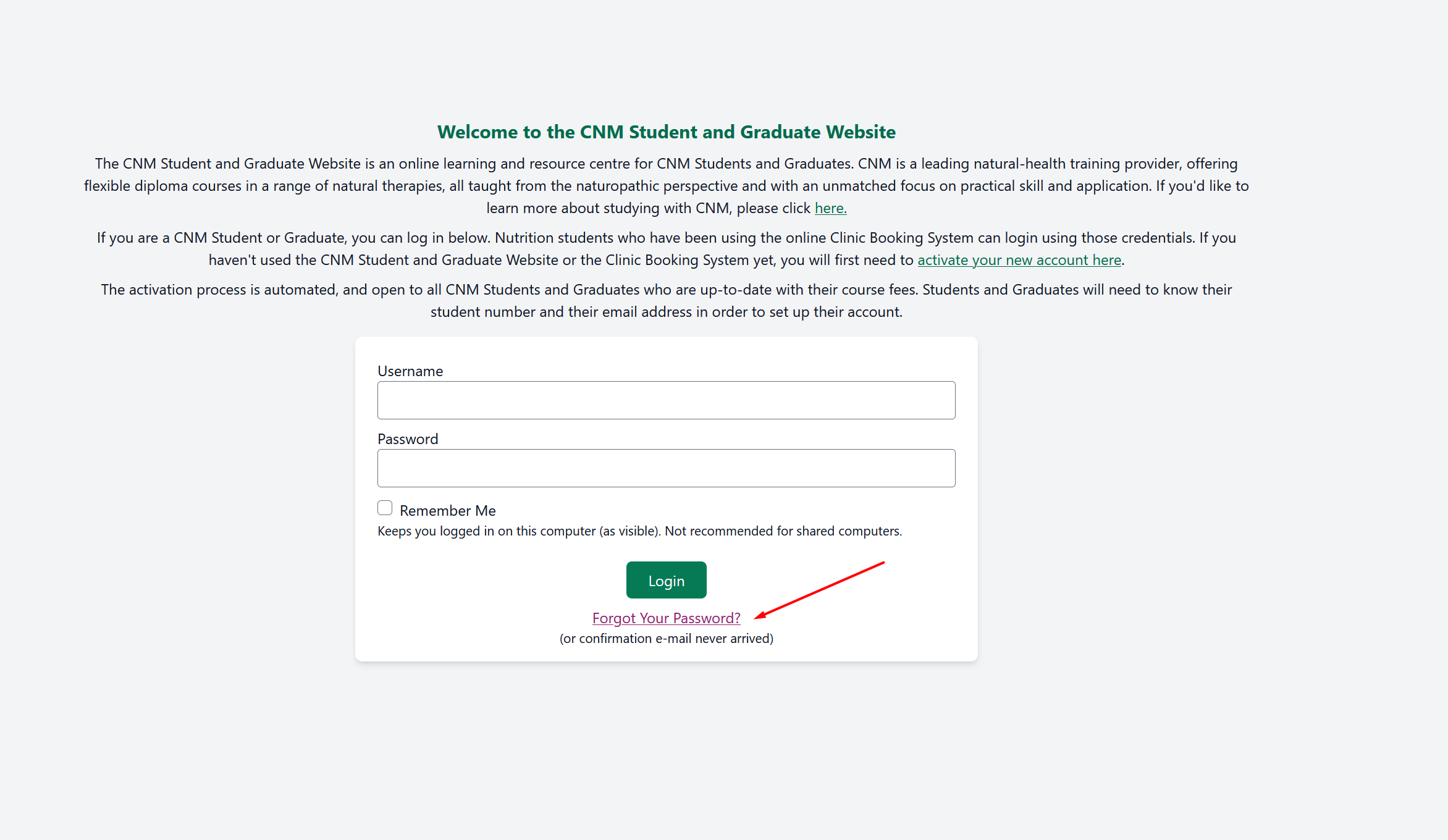
2.1. If you need to reset your password for the student website (https://cnmstudent.com), click on the "Forgotten Password" link as shown in the reference picture below.
3. **Check Your Login Details**: Make sure you are typing your username and password correctly. Double-check if your CAPS lock is on or off, as this can affect login attempts.
4. **Try a Different Web Browser**: If the issue persists, try logging in using a different browser. We recommend using **Google Chrome**, as it has been tested for optimal performance with our online platform.
Was this article helpful?
That’s Great!
Thank you for your feedback
Sorry! We couldn't be helpful
Thank you for your feedback
Feedback sent
We appreciate your effort and will try to fix the article