Technical and exam related questions:
How do I access the exam help line?
Integrity Advocate support contact number: +44 20 8103 9092
Email Integrity Advocate support: support@integrityadvocate.com
To access their 24/7 chat go to https://www.integrityadvocate.com/support and click on the message icon in the bottom right of the screen

Do i need a camera to take my exam?
Yes, in order to sit your exam online a webcam (built-in or external) will need to be connected to your PC, Laptop.
IMPORTANT! Exam problems on MAC
For MAC users you will need to ensure that you add 'Chrome' to your System Preference > Security and Privacy > Privacy
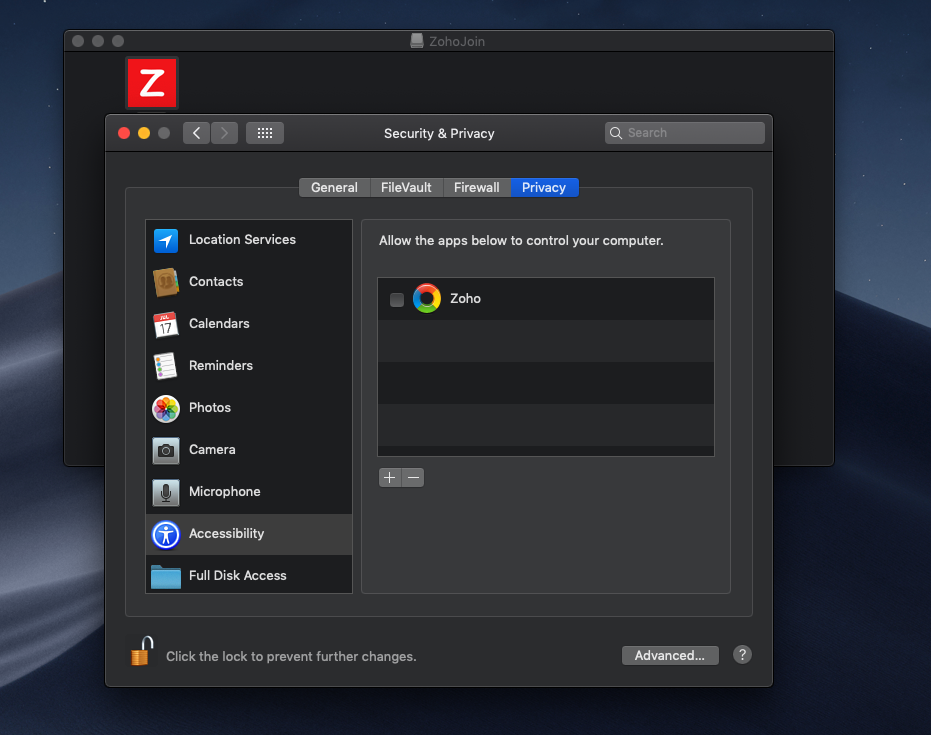
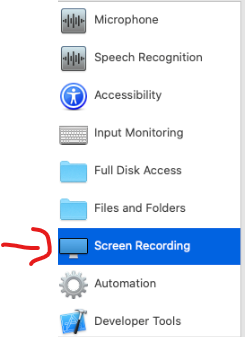
If the 'Chrome' icon isn't displayed please click the 'plus +' icon to add it for screen recording.
Exam is not allowing me to start?
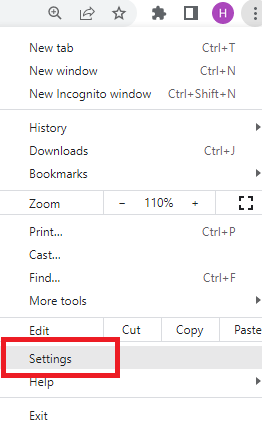
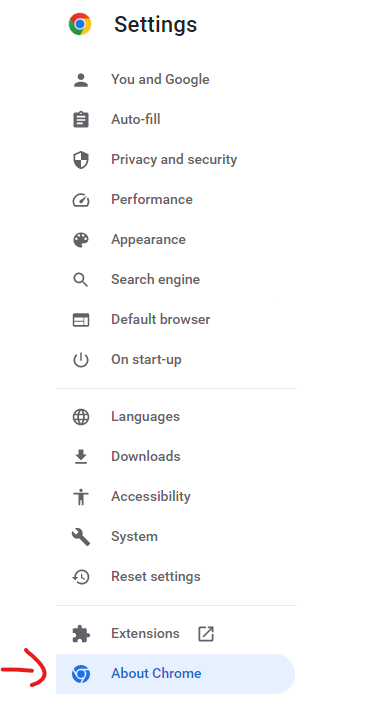
## Please ensure that you are using Google Chrome on your device and ensure it is up-to-date. ## 
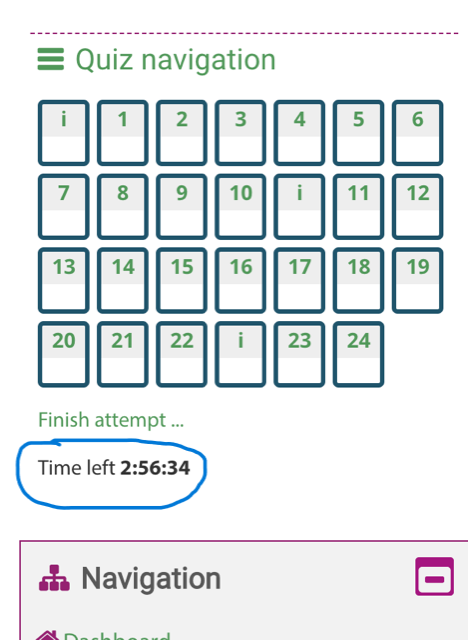
Where can I see how much time I have left of my exam?
The timer can be seen on the right hand side of the screen under 'Quiz navigation'
Can i take the exam on a tablet or mobile device?
No, unfortunately a tablet or mobile device is unable to be used for any online exam.
I have a Chromebook, can i use this to take the exam?
Yes, because the software we use to invigilate the exam is browser based, a Chromebook can be used.
Do i need to use a microphone to take an online exam?
No, the software we use, uses AI and human reviewers instead so no microphone is required.
What happens if my camera disconnects during the exam?
The exam is stopped until a camera is reconnected, the timer continues until this happens.
Do i need to do the online Exam Set Upbefore the actual exam?
We highly recommend that students prepare themselves to ensure all of your equipment is working before the actual exam, but this is not a mandatory requirement.
Can i use multiple displays/monitors?
No, you are only permitted to use one monitor for online exams. Further to this the system will detect if multiple monitors are connected.
Where can i find the manual for how to take the exams?
You can view the manual on taking exams here
When will I receive my exam/assignment mark?
Your exam/assignment mark will be released 4 weeks from it's deadline. It may take slightly longer if it is going through moderation. If you receive no results after 6 weeks then please contact your acacdemic team.
Has my exam been submitted?
If you click submit all and finish, your exam will be submitted.
If you reach the end of the time on your exam then your attempt gets automatically submitted.
If you experience any technical issues and need to check please email websites@naturopathy-uk.com
Can I use pen and paper in the exam?
No, since we’ve implemented the room scan procedure, students are no longer permitted to use pen and paper during the exam.
Can I use the bathroom during the exam?
You should use the bathroom before you take your exam and avoid leaving the exam for any reason.
If you have to leave your computer during the exam, it is important that you email your course tutor as soon as the exam has finished to let them know. You must advise the reason for your absence as the invigilation system will have been alerted and your exam paper flagged for close inspection by the Academic team.
Please note that if you leave the exam for more than 5 minutes you will be asked to complete the proctor set up again.
If you need multiple toilet breaks each occasion will be flagged to the Academic team for review.
Can I use headphones?
No, headphones are not allowed during the exam.
Non Technical exam related questions:
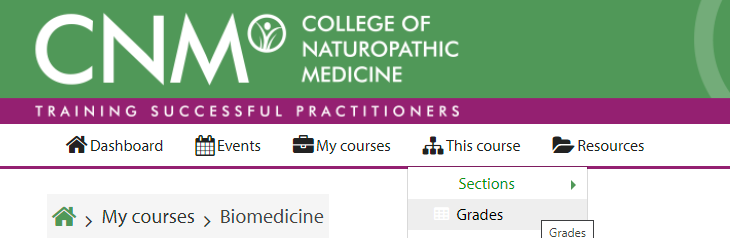
How do i view my Semester exam grade?
Navigate to your course and then under This course>Grades
How do i view my assignment grade and marker feedback?
Login to https://online.cnmstudent.com and navigate to the relevant course under "My courses"
Click on This Course -> Assignments
Navigate to the relevant assignment
If the grading status is "Released" you will be able to see your feedback at the bottom of the page
 Click on "View annotated PDF..." to view your feedback
Was this article helpful?
That’s Great!
Thank you for your feedback
Sorry! We couldn't be helpful
Thank you for your feedback
Feedback sent
We appreciate your effort and will try to fix the article