Complete Guide on How to take your exam through Integrity Advocate
Your examination MUST be done in the Google Chrome web browser on a laptop or desktop computer. This requirement is clearly stated in the exam Terms and Conditions and is non-negotiable, as it ensures the integrity and security of the exam process.
Please read this document to understand how to set up the online invigilation software that will be used on the day of your Semester exams. Once you have read the document, please complete the 'Exam Set Up'. This will take you through the set-up stages and ask you to complete 3 questions about your experience. It will only take a few minutes to complete. If you experience any issues then please contact the Web Support team websites@naturopathy-uk.com.
Your examination MUST be done in the Google Chrome web browser. Performing your examination in another web browser will begin your attempt and start the timer. IT Support will not be able to grant the time back if this happens, so it is imperative that you ensure you are using Google Chrome.
If you do not have Google Chrome installed on your desktop/laptop, you can find the download link here: https://www.google.com/intl/en_uk/chrome/.
If you would like to learn more about our Privacy Policy, you can find it here: https://www.naturopathy-uk.com/privacy-policy/.
IF YOU ARE A MAC USER PLEASE FOLLOW THESE STEPS BEFORE YOU START YOUR EXAM
If you are a Windows user, please skip this step and continue to "START HERE"
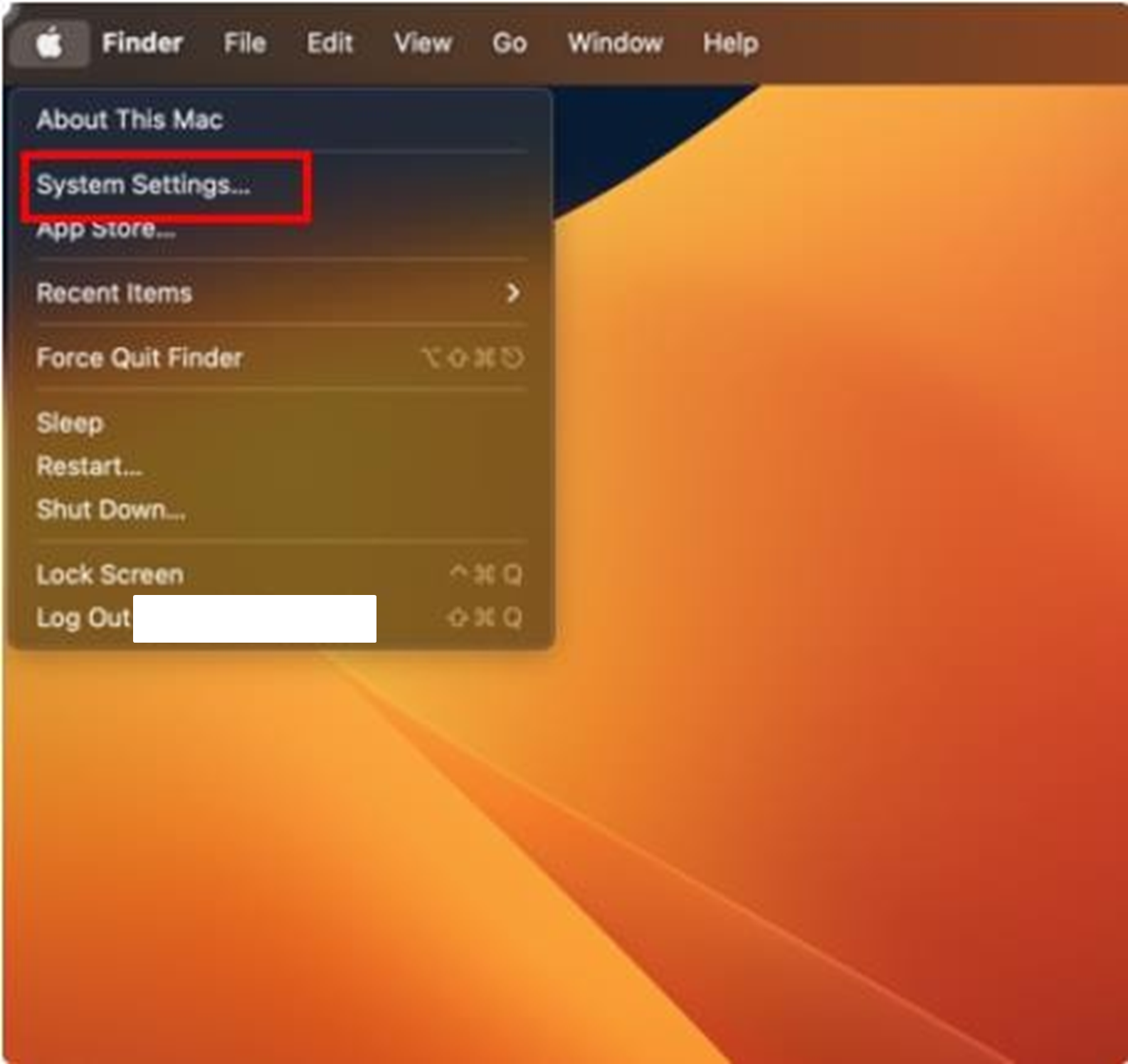
1. Before launching the exam/assessment, open System Settings by clicking on the Apple Icon.
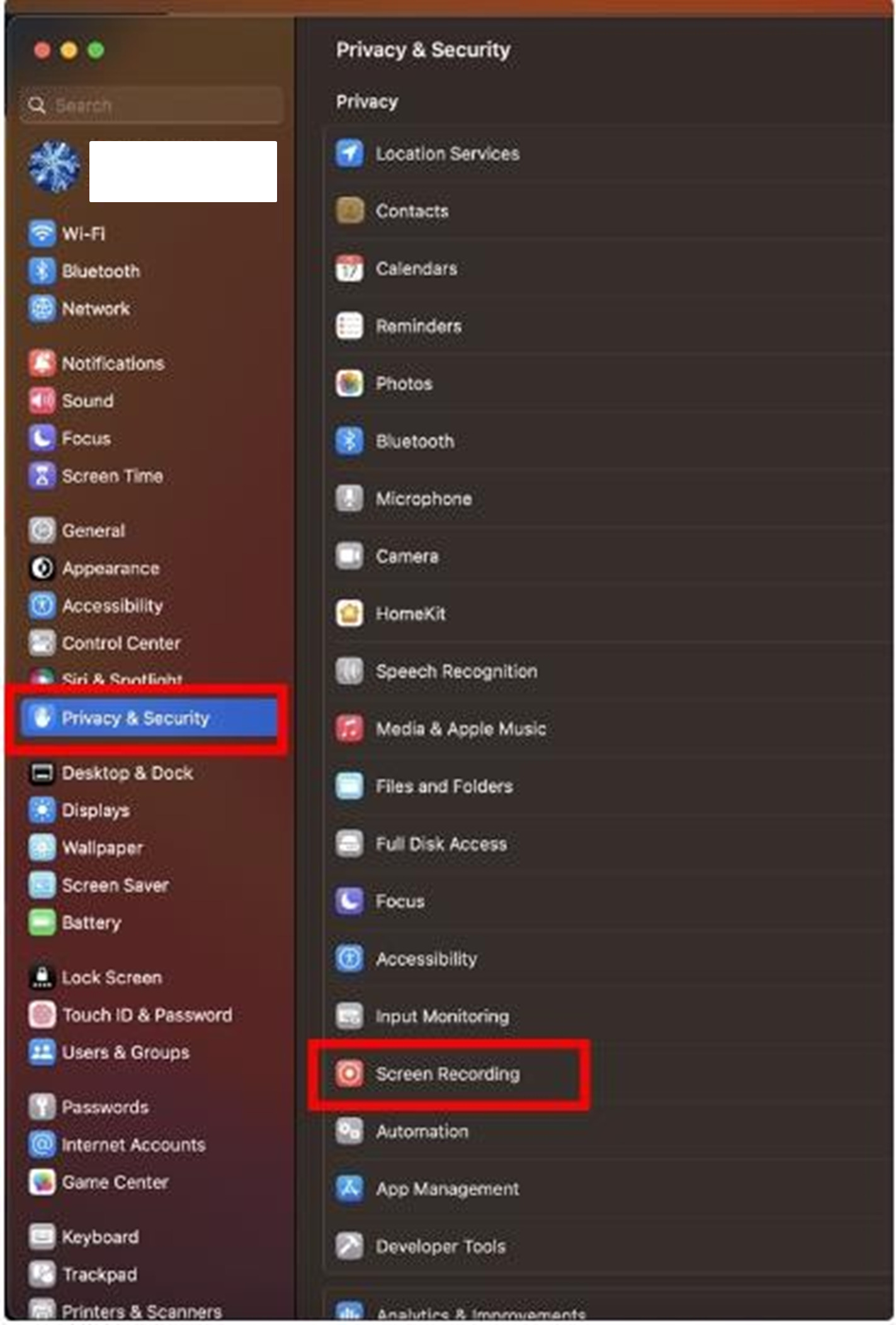
2. Select Privacy & Security from the left bar list, then select Screen Recording
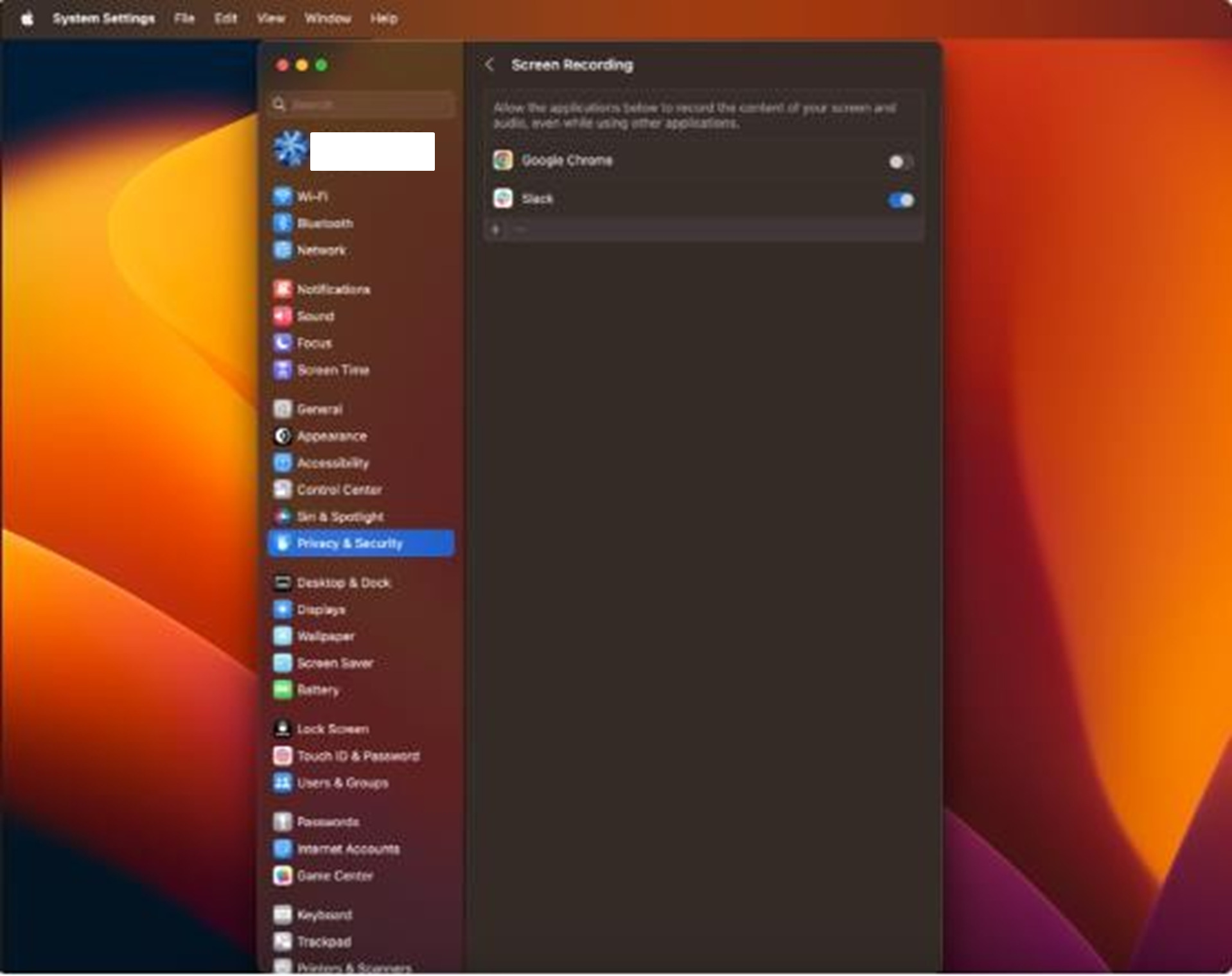
3. Under Screen Recording, toggle on Google Chrome.
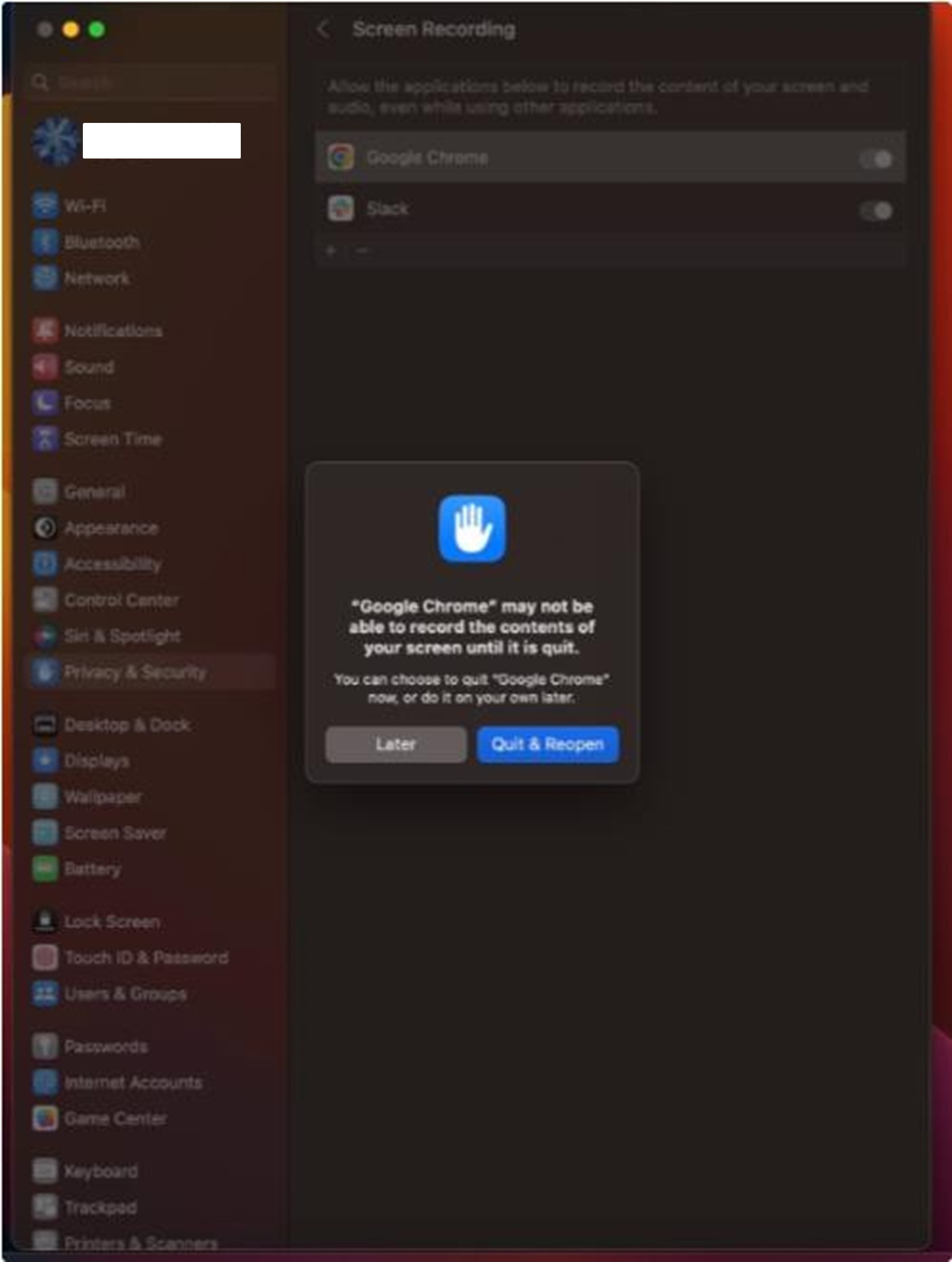
5. When prompted, click Quit & Reopen. The change will not take effect and you will not be able to share your screen until you quit and restart your browser (Applicable when Chrome is open/running while doing this troubleshooting)
START HERE
Locate your Exam Set Up tile. This is located just before your exam tile
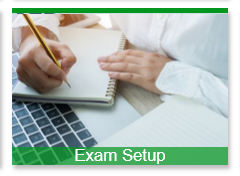
Navigate to the 'Exam Set Up' activity.
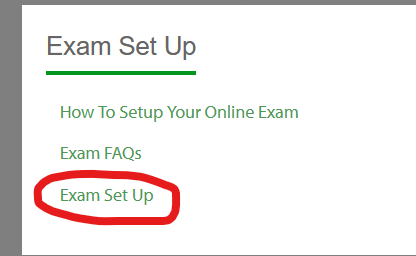
Click on the link to open the activity
When ready click 'Attempt quiz now'
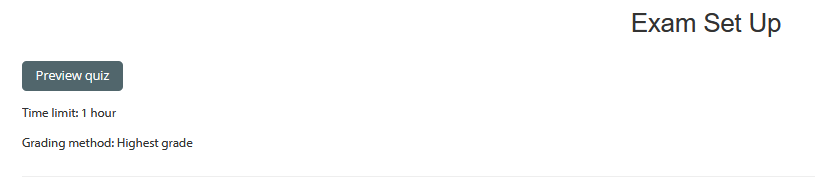
The Integrity Advocate overlay will appear on your screen.
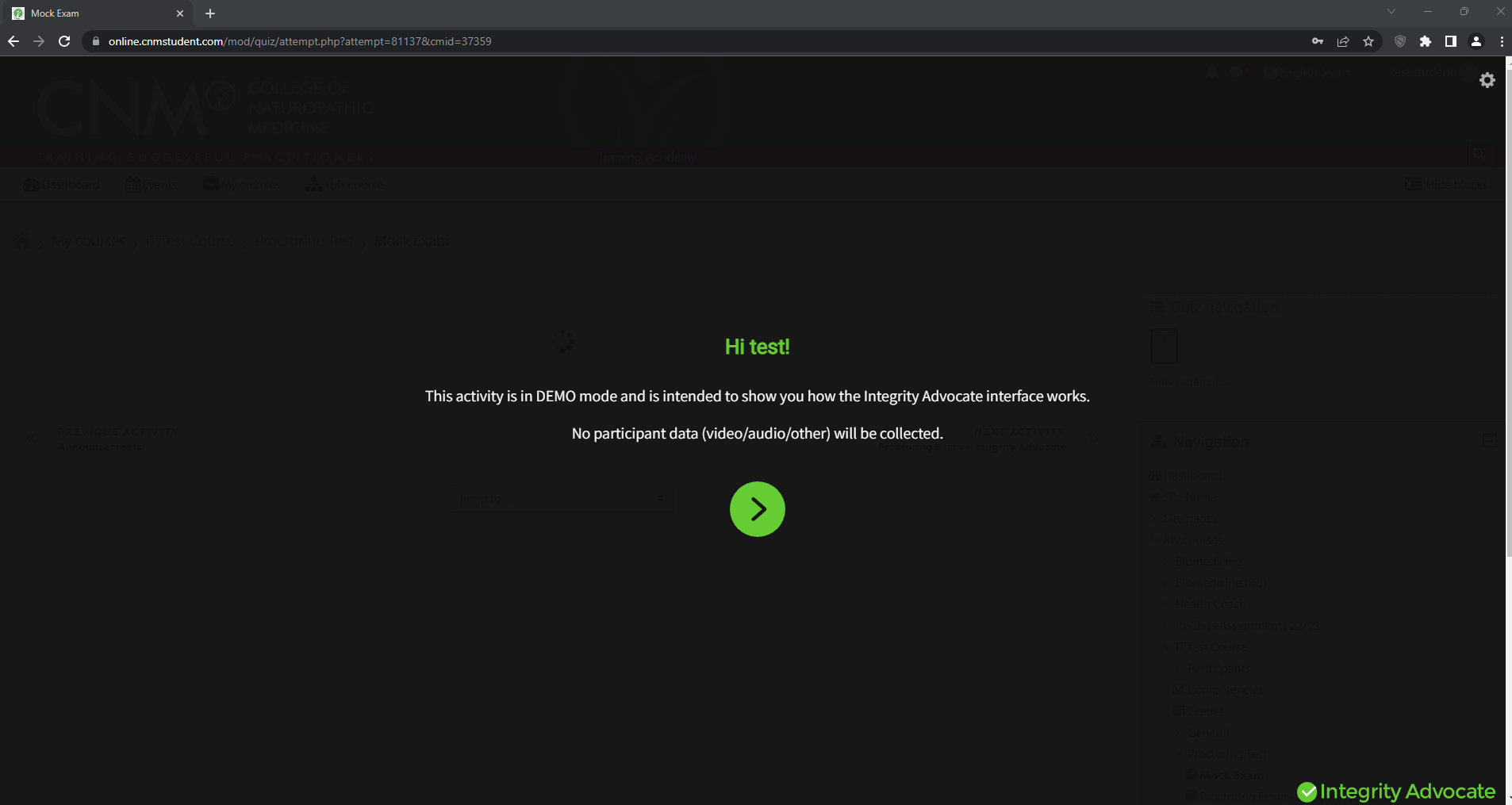
If you see a black screen with a green button and no text, please ensure your Chrome is up to date. Follow the steps here
Click on the green arrow to continue.
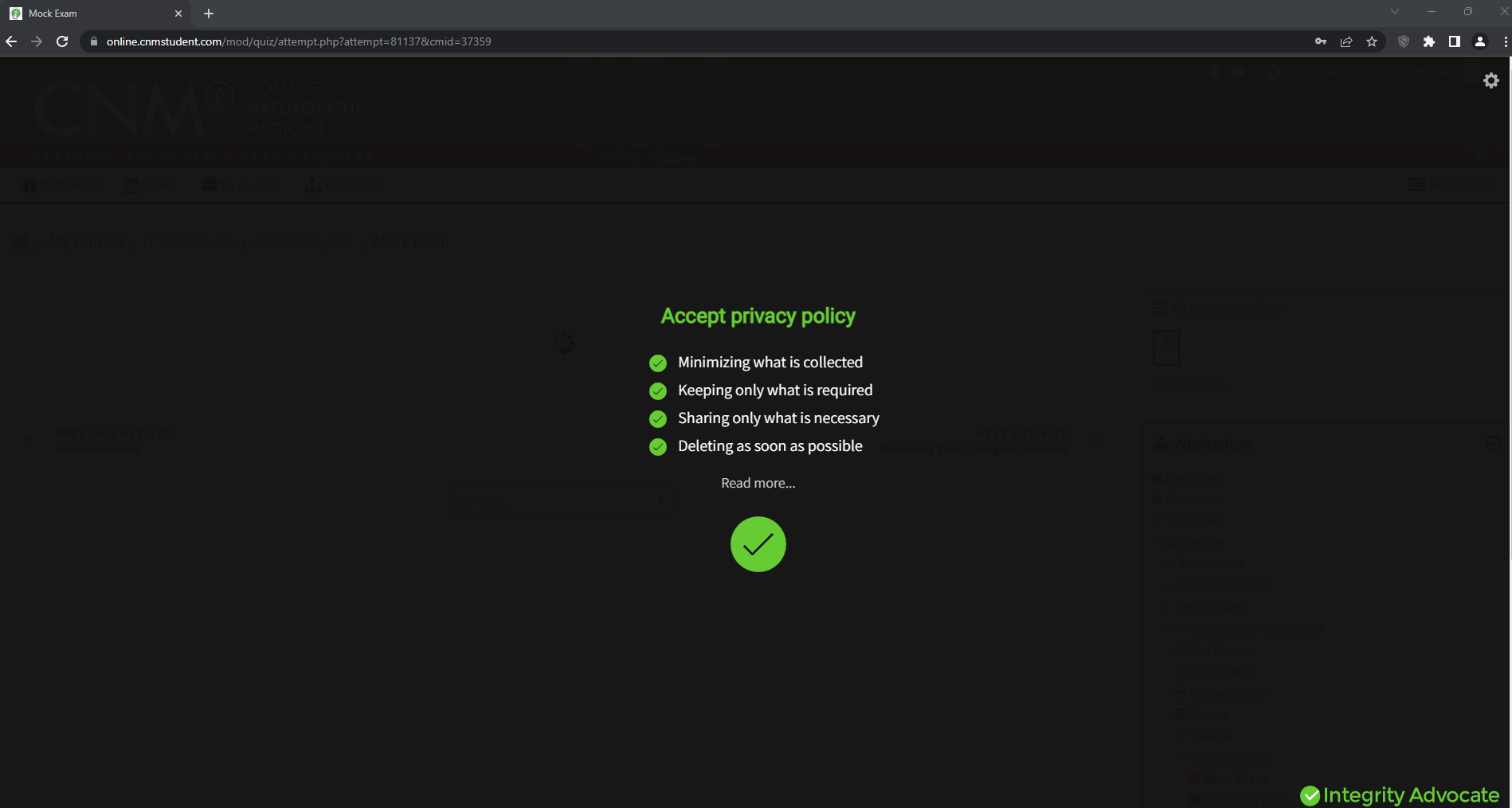
Click on the checkmark to accept the Privacy Policy
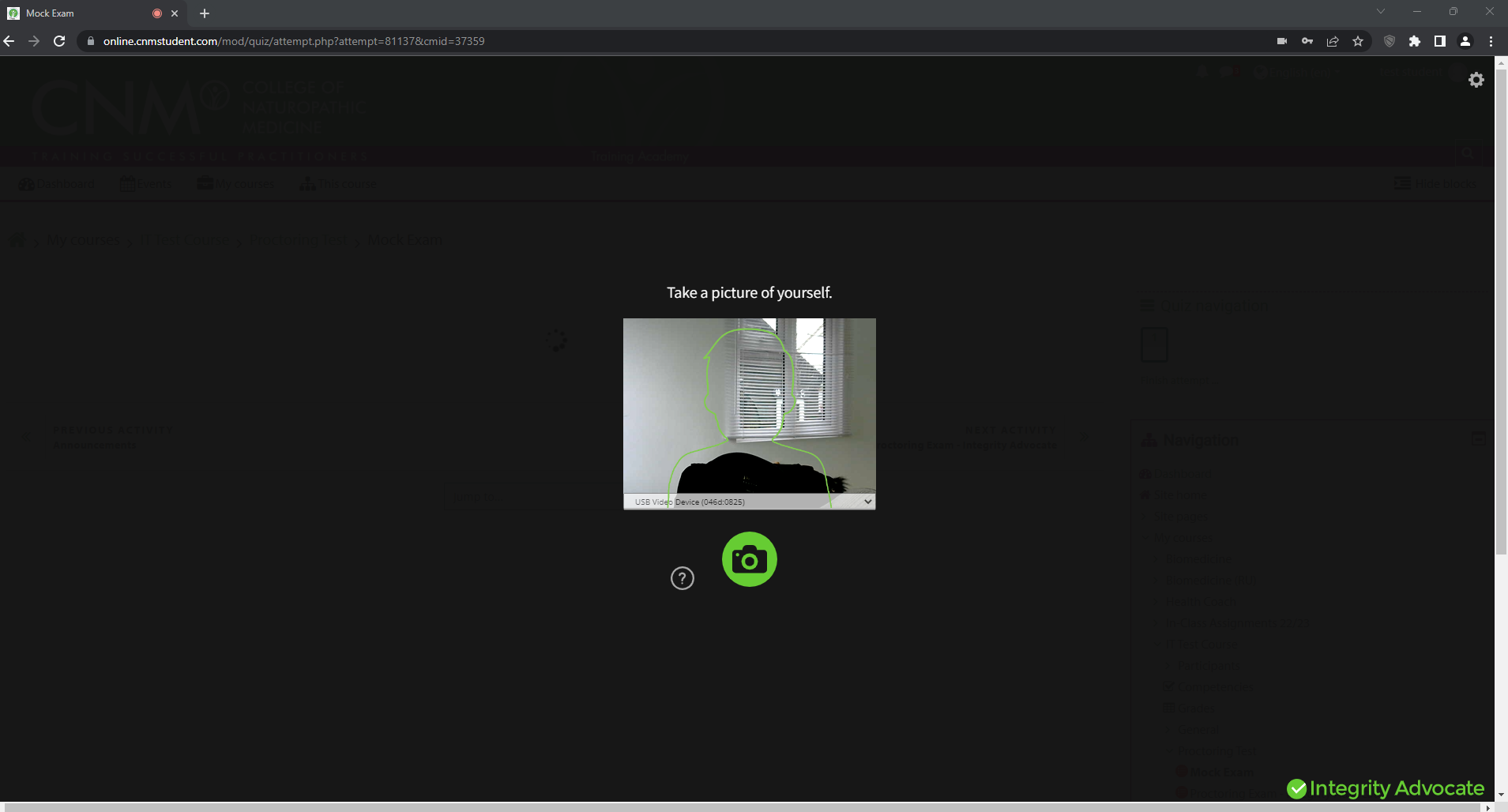
You will then be asked to take a photo of yourself through your laptop/desktop. Once you are happy with the photo you’ve taken, you can press the green arrow to confirm.
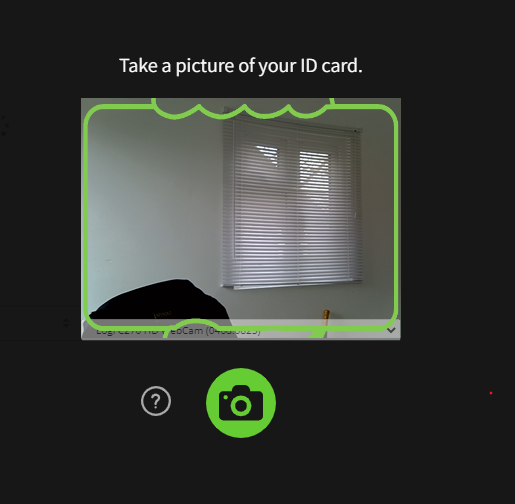
The Exam Set Up will ask your for an ID card. This is not required but please take a picture of anything to be able to proceed. This step is not in your real exam.
Click the camera to take a picture and then proceed
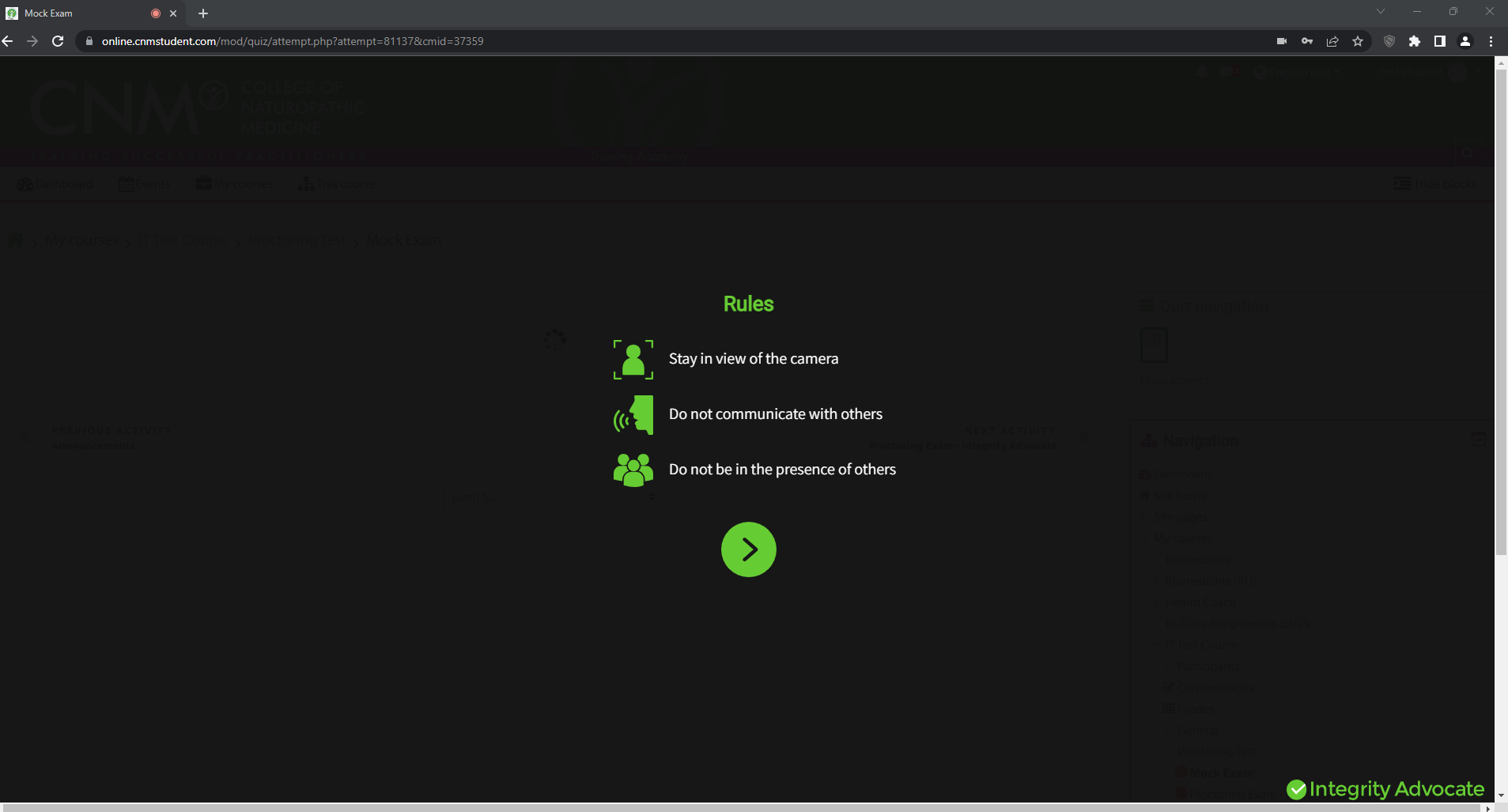
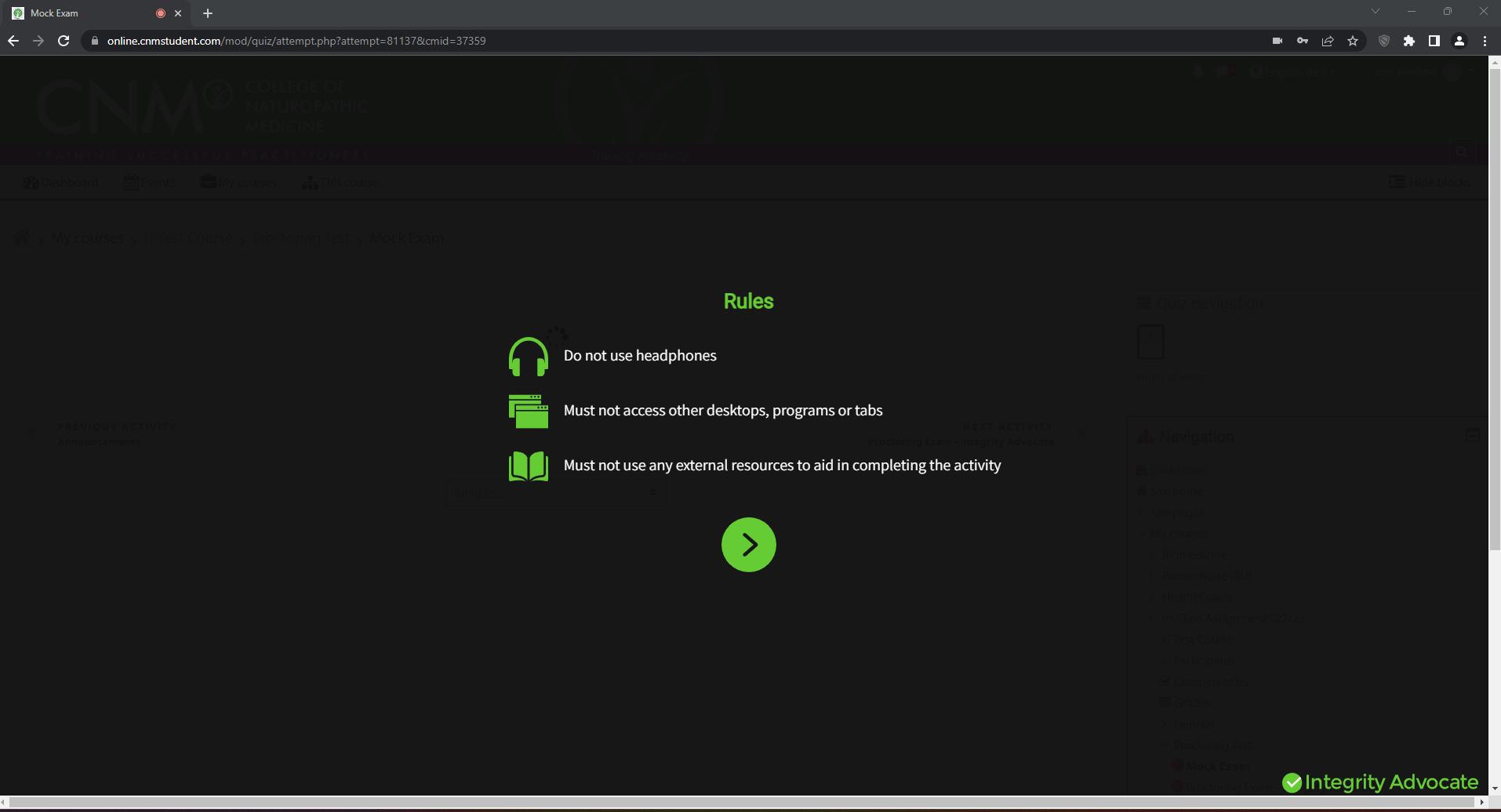
You will then be greeted with the rules of the exam. The rules are as follows:
- Stay in view of the camera
- Do not communicate with others
- Do not be in the presence of others
- Do not use headphones
- Must not access other desktops, programs, or tabs
- Must not use any external resources to aid in completing the activity
Press the green arrow once you’ve read and understood the rules of the exam. After the second page of the rules, you will be brought into the exam.
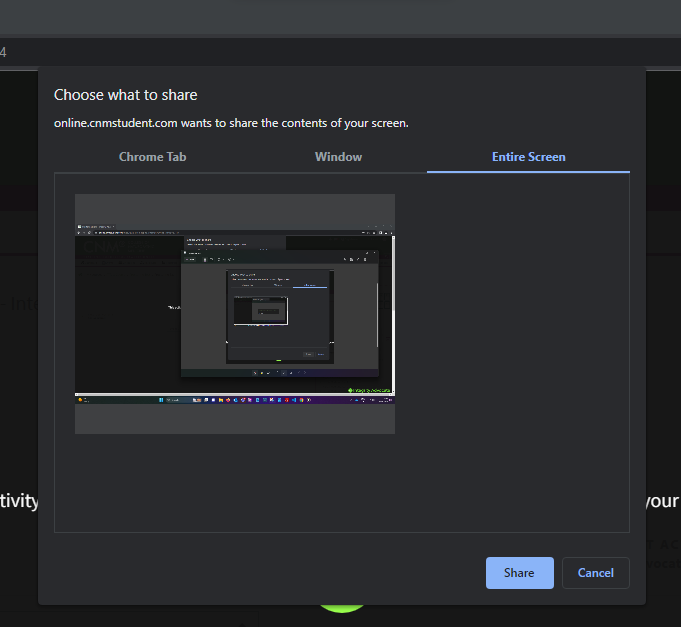
You are required to share your screen
Click Entire Screen
Click Share
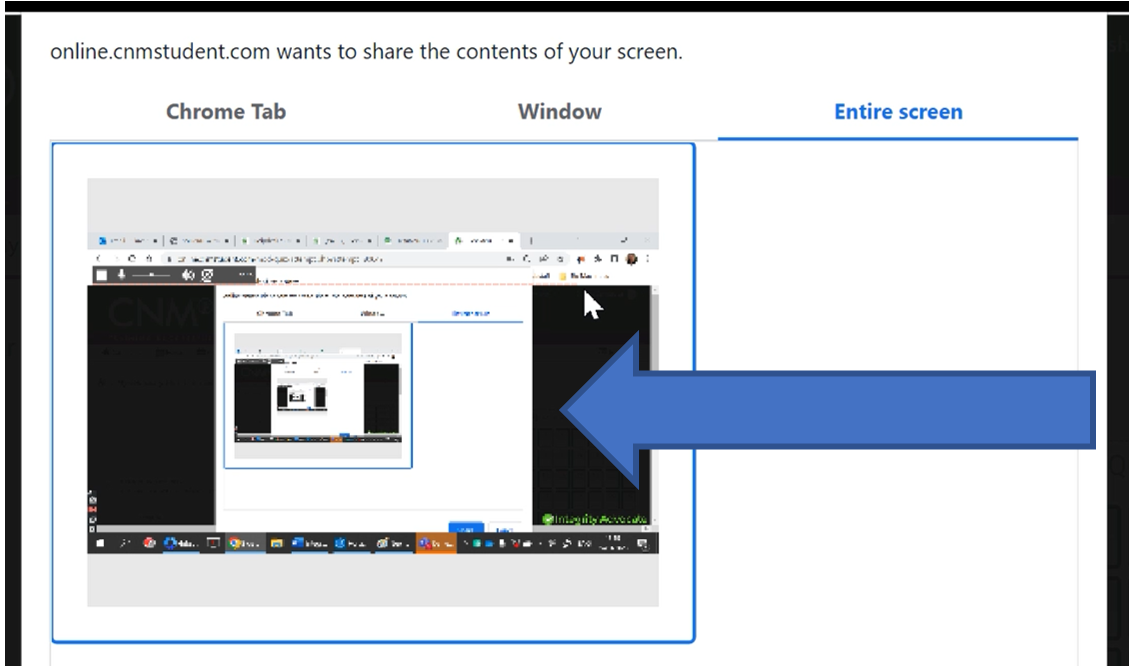
If the 'Share' button is greyed out, try clicking on the image of your screen and you should see a blue rectangle appear around the perimeter. Share should now be enabled.
You are now ready to complete your exam The time you have left shows in the box at the top right of your exam.
Your exam will be submitted automatically once the timer runs out if you do not submit it before this.

Once you are ready to submit your attempt, scroll to the bottom of the exam page and click the “Finish Attempt”.
Screen sharing will stop automatically after you submit.
That will conclude your examination attempt.
If you feel like this article is unclear and you have advice on how it can be improved. Please email your suggestion to websites@naturopathy-uk.com. Thank you.
Update Chrome
When in the Google Chrome browser you may see red text that says you need to update

Please click the button to relaunch Chrome
Alternatively,
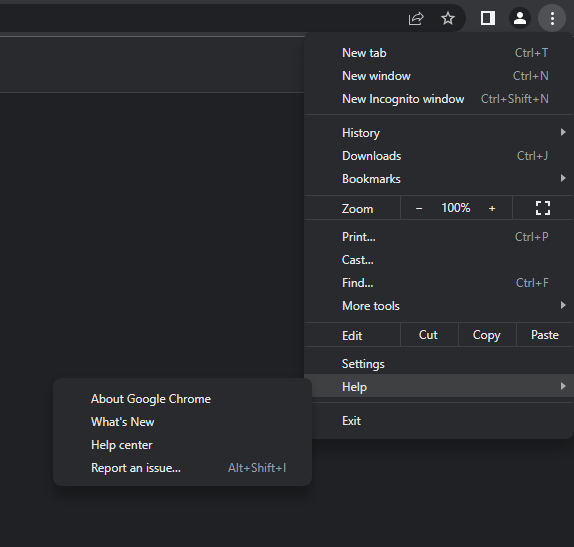
In the top right of your Chrome browser page click the more button 
Help -> About Google Chrome
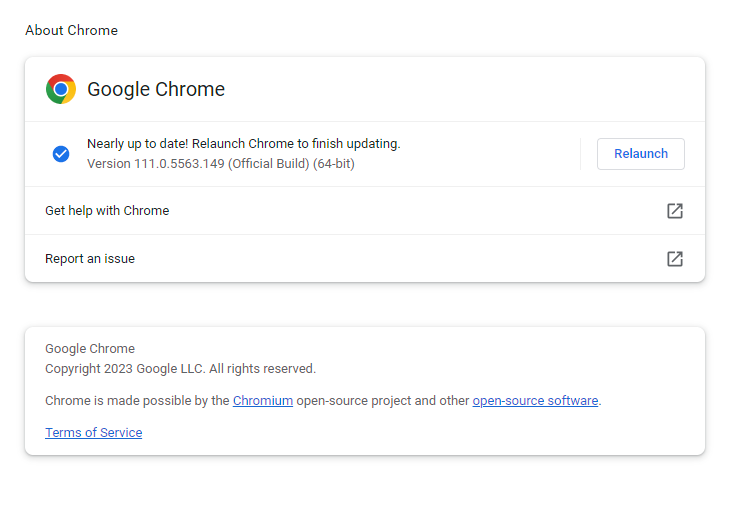
If your Chrome is not up to date you will be asked to relaunch the browser
If Google Chrome is up to date you will see:
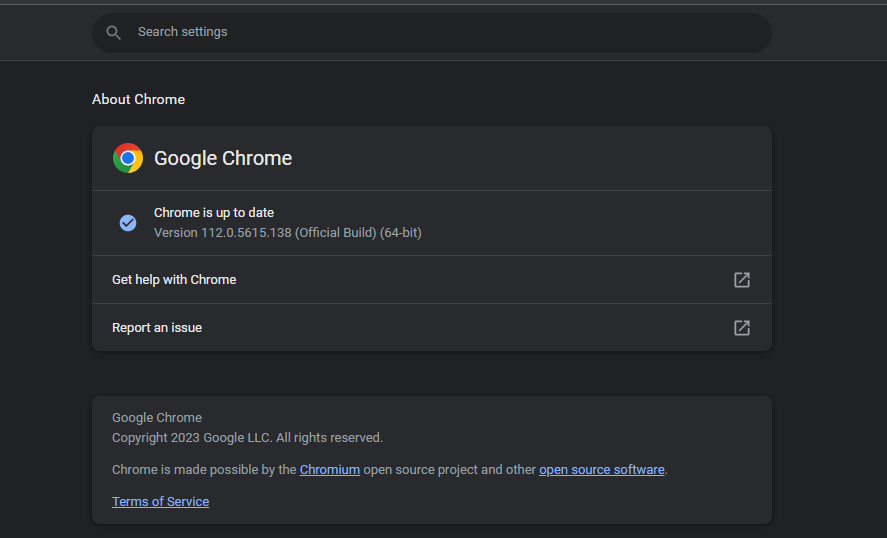
If it asks you to relaunch or update, please do so.
Was this article helpful?
That’s Great!
Thank you for your feedback
Sorry! We couldn't be helpful
Thank you for your feedback
Feedback sent
We appreciate your effort and will try to fix the article