Steps to Turn Off Spell Check in Google Chrome
Open Google Chrome
Launch the Chrome browser on your computer.
Access Chrome Settings
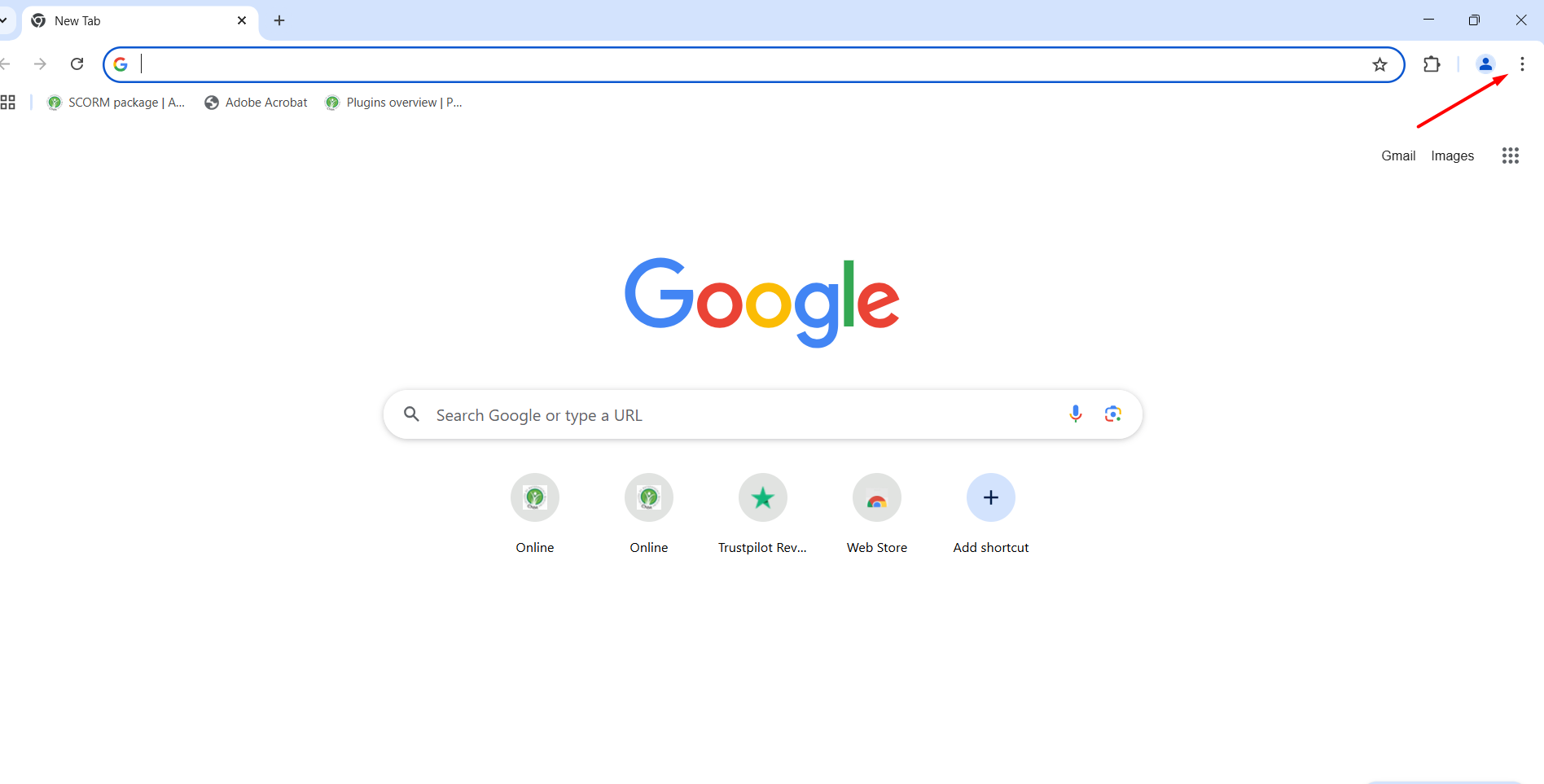
Click on the three-dot menu in the top-right corner of the browser.
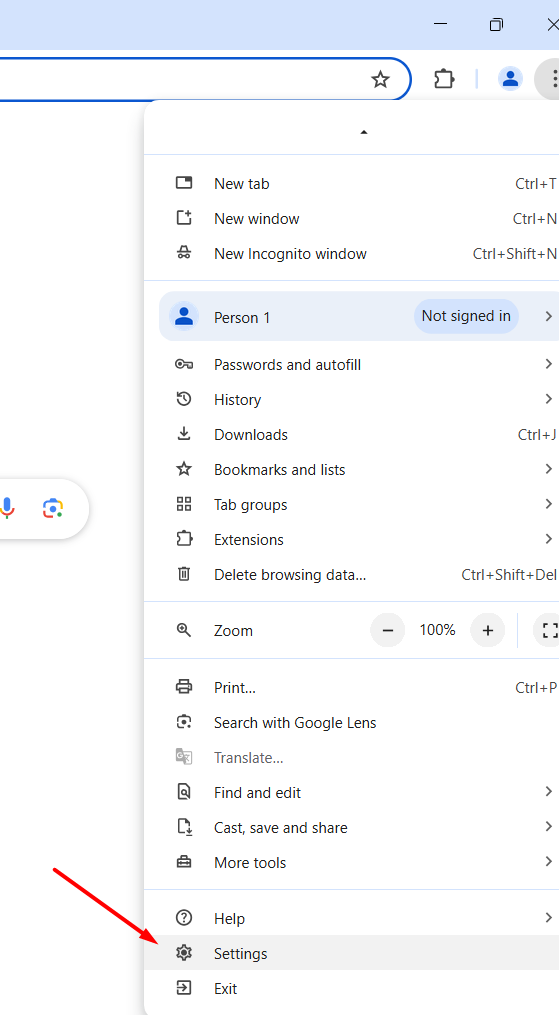
Select Settings from the dropdown menu.
Navigate to Languages
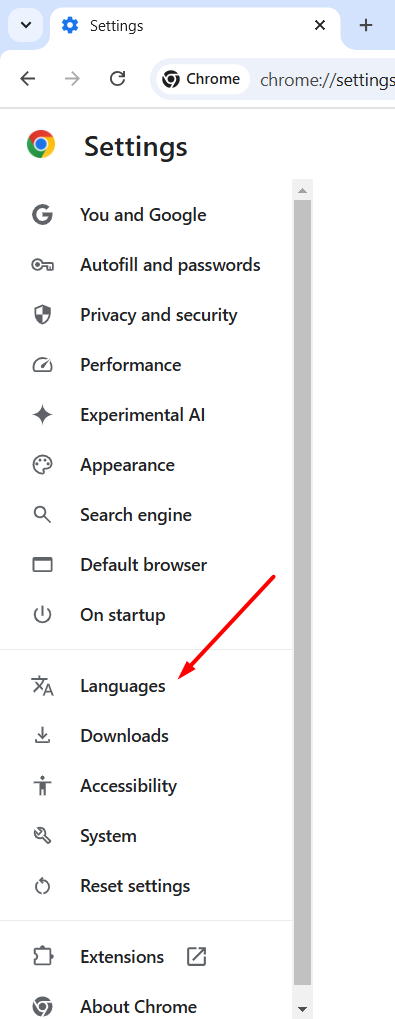
In the left-hand menu, click on Languages.
Disable Spell Check
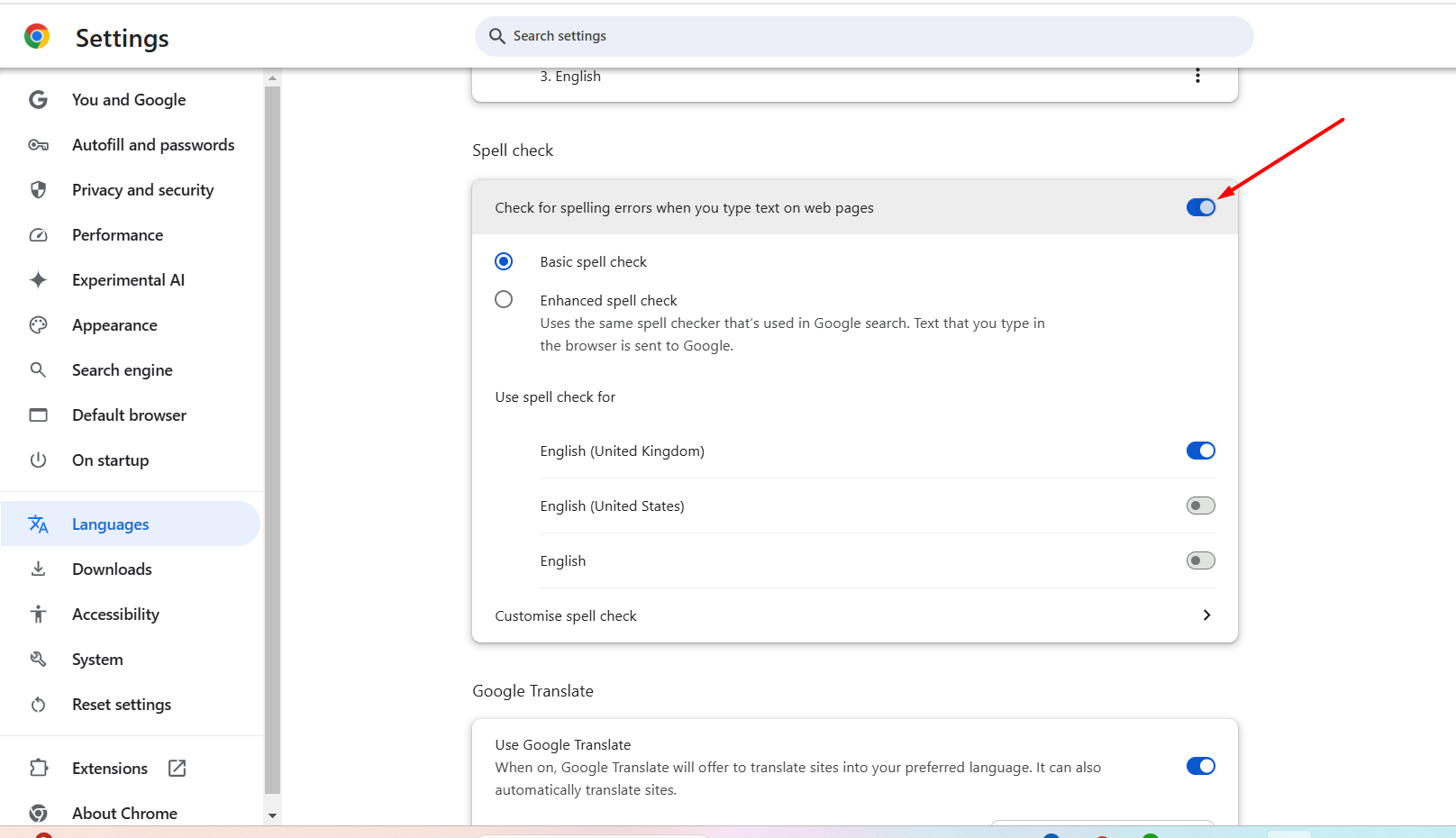
In the middle section of the page, locate the Spell check option.
Under "Check for spelling errors when you type text on web pages," untick or toggle off this option.
Restart Chrome (If Necessary)
In some cases, changes may not apply immediately. If the red squiggly lines persist, try closing and reopening Chrome.
Was this article helpful?
That’s Great!
Thank you for your feedback
Sorry! We couldn't be helpful
Thank you for your feedback
Feedback sent
We appreciate your effort and will try to fix the article